You're staring at your screen, stuck on a coding problem for the third hour straight. Your deadline is tomorrow. You need help fast. But which AI coding assistant should you turn to - GitHub Copilot or ChatGPT?
This question keeps popping up in developer communities. Both tools use artificial intelligence to help programmers write better code faster. Yet they work in completely different ways. One lives inside your code editor. The other sits in your browser tab.
I've spent months testing both platforms across real projects. I've built web apps, debugged legacy code, and written everything from Python scripts to React components. This guide breaks down exactly what each tool does best, where they fall short, and which one fits your workflow.
Try GitHub Copilot
Try ChatGPT
What Makes GitHub Copilot Different from ChatGPT?
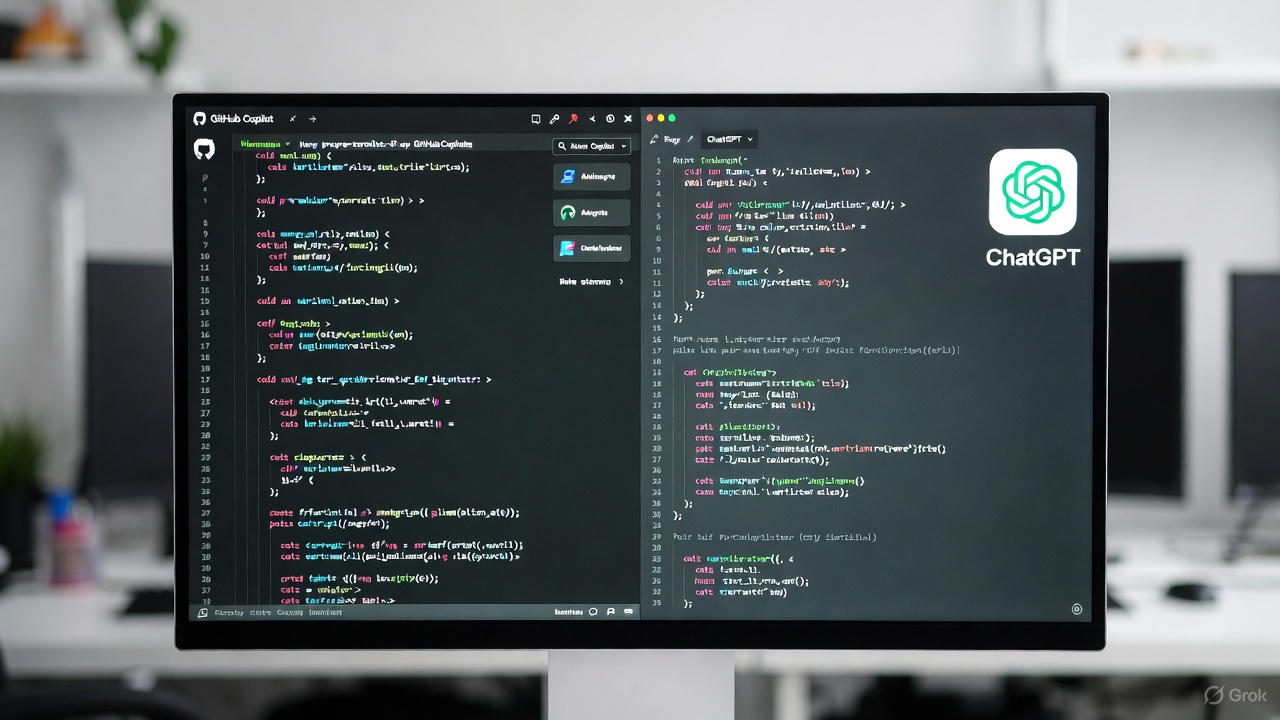
GitHub Copilot integrates directly into your development environment. It runs as an extension in VS Code, Visual Studio, Neovim, and JetBrains IDEs. The tool suggests code as you type, finishing your functions and offering complete implementations based on comments you write.
Think of Copilot as your pair programming partner who sits next to you. It sees your entire file context. It understands your variable names, function signatures, and coding patterns. When you start typing a function, it predicts what comes next and offers suggestions inline.
ChatGPT operates differently. You open it in a web browser or desktop app. You describe your coding problem in plain English. The AI generates complete explanations, full code blocks, and detailed walkthroughs. It answers questions about algorithms, debugging strategies, and best practices.
The core difference? Copilot works inside your workflow. ChatGPT requires you to switch to a different application.
How GitHub Copilot Handles Code Completion
Copilot shines when you're actively writing code. You type a function name or comment, and suggestions appear in gray text. Press Tab to accept them. Press Escape to ignore them.
The autocomplete goes beyond simple text prediction. Copilot analyzes your project structure. It learns from open source repositories similar to yours. When you define a function that fetches user data from an API, Copilot suggests the entire implementation - error handling included.
Here's a real scenario: You're building a REST API endpoint in Express.js. You type:
// Create endpoint to get user profile by ID
Copilot immediately suggests:
app.get('/api/users/:id', async (req, res) => {
  try {
    const user = await User.findById(req.params.id);
    if (!user) {
      return res.status(404).json({ error: 'User not found' });
    }
    res.json(user);
  } catch (error) {
    res.status(500).json({ error: 'Server error' });
  }
});
You didn't write a single line. Copilot generated the entire endpoint with proper error handling based on your comment.
The tool also offers multiple suggestions. Press Alt + ] or Option + ] to cycle through alternatives. Each version might use different patterns or approaches to solve the same problem.
Copilot Chat adds a conversational layer. You can ask questions inside VS Code without leaving your editor. Type /explain to understand complex code. Use /fix to debug errors. The chat window stays docked while you code.
How ChatGPT Approaches Coding Problems
ChatGPT gives you a blank canvas for any programming question. You describe what you need, and it responds with explanations, code samples, and step-by-step guidance.
The strength here is flexibility. You can ask ChatGPT to:
- Explain how binary search trees work with visual examples
- Debug a cryptic error message from your Python script
- Compare different approaches to state management in React
- Write unit tests for existing functions
- Translate code from Java to TypeScript
- Review your code for security vulnerabilities
ChatGPT excels at teaching. When you ask how something works, it breaks down concepts into digestible pieces. It shows you the "why" behind coding decisions, not just the "what."
Let's say you're confused about async/await in JavaScript. You ask: "Why do I need async/await instead of promises?"
ChatGPT responds with:
- A clear explanation of the problem promises solve
- Code examples showing promise chains getting messy
- The same code rewritten with async/await
- When to use each approach
- Common mistakes to avoid
This teaching style helps you learn programming concepts deeply. You're not just copying code - you understand it.
The newer ChatGPT models (GPT-4 and beyond) handle complex coding tasks. You can paste your entire codebase context, describe a feature you need, and get a complete implementation. The AI maintains conversation history, so you can iterate on solutions across multiple messages.
Performance Comparison: Speed and Accuracy
Copilot responds instantly. Suggestions appear as you type with almost zero latency. This immediacy keeps you in flow state. You're not waiting for responses or switching contexts.
The accuracy varies by programming language. Copilot performs best with JavaScript, Python, TypeScript, Ruby, and Go. These languages have massive training data from open source projects. You'll get highly relevant suggestions most of the time.
For less common languages or domain-specific code, suggestions get weaker. If you're writing Fortran or working with niche frameworks, Copilot might offer generic code that doesn't fit your needs.
ChatGPT takes longer to respond. You type your question, hit send, and wait several seconds for the complete answer. For quick autocomplete needs, this delay disrupts your rhythm.
But ChatGPT compensates with deeper reasoning. It can tackle complex architectural questions that require paragraph-length explanations. When accuracy matters more than speed, ChatGPT's thoughtful responses win.
Both tools make mistakes. Copilot sometimes suggests code with subtle bugs - wrong variable names, off-by-one errors, or security vulnerabilities. ChatGPT occasionally hallucinates function names that don't exist or suggests outdated syntax.
You need to review everything. These are assistants, not replacements for your judgment.
Real-World Coding Scenarios: Which Tool Wins?
Building new features from scratch: GitHub Copilot wins here. When you're implementing a feature you've built before - like pagination, authentication, or form validation - Copilot accelerates your typing dramatically. It predicts boilerplate code before you finish your thought.
Learning new frameworks: ChatGPT takes this round. You can ask it to explain Next.js routing conventions, Svelte reactivity, or Django ORM queries. It provides context, examples, and explanations that help you understand the framework's philosophy.
Debugging errors: It's a tie with different strengths. Copilot quickly suggests fixes when you're staring at red squiggly lines in your editor. ChatGPT helps when you need to understand why the error happened and how to prevent it next time.
Writing test cases: GitHub Copilot generates unit tests efficiently. You write a function, then add a comment like "test the addNumbers function." Copilot suggests complete test cases with multiple scenarios. ChatGPT can do this too, but requires copying code out of your editor.
Code review and refactoring: ChatGPT wins. You can paste an entire file and ask, "How can I improve this code?" It provides detailed feedback about structure, naming, performance, and maintainability. Copilot doesn't do holistic code review.
Exploring alternative solutions: ChatGPT excels here. You can ask, "What are three ways to implement caching in Node.js?" and get a comparison of approaches with pros and cons. Copilot shows you one solution at a time.
Working with APIs: Both perform well. Copilot autocompletes API calls when you've used similar endpoints before. ChatGPT helps you understand API documentation and construct complex requests.
Language Support and Framework Compatibility
GitHub Copilot supports virtually every programming language. The quality varies based on training data availability:
Excellent support: JavaScript, TypeScript, Python, Java, C++, C#, PHP, Ruby, Go, Swift, Kotlin
Good support: Rust, Scala, Dart, Perl, Lua, Shell scripts
Limited support: Less common languages like Haskell, Elixir, F#, Assembly
For frameworks, Copilot recognizes popular ones like React, Vue, Angular, Django, Flask, Express, Spring Boot, and .NET. It suggests framework-specific patterns and follows common conventions.
ChatGPT handles any language you throw at it. The AI doesn't favor one language over another in terms of availability. But its suggestions for popular languages like Python and JavaScript tend to be more polished because these languages appear frequently in its training data.
Framework knowledge in ChatGPT comes from its broad training. It can discuss obscure frameworks just as easily as mainstream ones. If you're working with something like Qwik or Fresh, ChatGPT can still provide useful guidance even though these frameworks didn't exist during most of its training.
Integration with Development Workflows
GitHub Copilot lives where you code. After installing the extension, it becomes part of your editor. No context switching required. You can accept suggestions with a single keystroke and keep typing.
The tool integrates with:
- Version control in your IDE
- Existing linters and formatters
- Keyboard shortcuts you already use
- Your project's folder structure and dependencies
Copilot reads your .gitignore file and respects your workspace settings. It becomes an invisible part of your development environment.
ChatGPT requires deliberate context switching. You must:
- Leave your code editor
- Open a browser or ChatGPT app
- Describe your problem with enough context
- Copy the generated code
- Return to your editor and paste it
This workflow breaks concentration. For quick questions during active coding, the friction adds up.
However, ChatGPT's desktop app and browser extensions reduce this friction slightly. You can keep ChatGPT in a side window and reference it without fully switching applications.
Some developers use both together. They keep Copilot running for autocomplete and open ChatGPT when they need explanations or architectural advice. This combination covers both in-editor assistance and deep problem-solving.
Cost Analysis: Pricing and Value
GitHub Copilot offers three pricing tiers:
Individual Plan: $10 per month or $100 per year. You get unlimited code suggestions, Copilot Chat, and support for all major IDEs.
Business Plan: $19 per user per month. This adds organization license management, policy controls, and intellectual property indemnity.
Enterprise Plan: $39 per user per month. You get everything in Business plus additional security features and fine-tuned models on your private repositories.
Students and verified open source maintainers get Copilot free. If you contribute to popular open source projects, you can apply for free access.
ChatGPT pricing varies:
Free tier: Limited access to GPT-3.5 with rate limits. You can use it for coding help but responses might be slower during peak times.
ChatGPT Plus: $20 per month. You get GPT-4 access, faster response times, and priority access during high-demand periods.
ChatGPT Team: $25 per user per month (minimum 2 users). This adds higher message limits and admin tools.
ChatGPT Enterprise: Custom pricing for large organizations with specific security and compliance needs.
For professional developers, both tools pay for themselves quickly. If Copilot saves you even 30 minutes per day, that's 10+ hours monthly - worth far more than $10. ChatGPT Plus at $20 monthly is similarly valuable if you frequently need coding help or explanations.
The question isn't whether they're worth the cost. It's which one gives you better return on investment based on your coding style.
If you write code constantly and value speed, Copilot's $10 monthly fee is a steal. If you're learning new technologies or need detailed explanations regularly, ChatGPT Plus justifies its higher price.
Many developers subscribe to both. The combined cost of $30 per month is still cheaper than one hour of consulting fees, and both tools save multiple hours weekly.
Privacy and Security Concerns
GitHub Copilot processes your code to generate suggestions. This raises questions: Where does your code go? Who can see it? What happens to sensitive information?
Copilot sends code snippets to GitHub's servers for processing. The service uses this data to improve suggestions. However, GitHub states they don't train their general model on your private repository code unless you explicitly opt in.
For Business and Enterprise plans, GitHub offers enhanced privacy:
- Your code isn't retained after processing
- No data sharing with other organizations
- Options to exclude certain files or repositories
- Audit logs for compliance tracking
ChatGPT stores conversation history by default. Every code snippet you paste becomes part of your chat history. OpenAI uses conversations to improve their models unless you disable this in settings.
To protect sensitive code in ChatGPT:
- Turn off chat history in settings
- Don't paste proprietary algorithms or trade secrets
- Remove sensitive variable names and business logic before sharing
- Use ChatGPT Enterprise if your organization requires strict data controls
Both companies claim they don't train on user data when privacy settings are enabled. But security-conscious teams should still avoid pasting:
- API keys or credentials
- Proprietary algorithms
- Customer data
- Internal business logic
A good practice: Use these tools for general programming patterns and public knowledge. Keep truly sensitive code out of any AI tool unless you're using an enterprise plan with contractual protections.
Learning Curve and User Experience
GitHub Copilot requires minimal learning. Install the extension, sign in, and start coding. Suggestions appear automatically. The interface stays invisible until needed. You don't need to learn new commands or workflows.
The challenge with Copilot is learning to ignore bad suggestions. New users sometimes accept every suggestion without thinking. This leads to code they don't understand and bugs they can't fix.
Experienced Copilot users develop a rhythm:
- Scan suggestions quickly
- Accept good ones with Tab
- Ignore poor ones with Escape
- Edit accepted code immediately if needed
This skill develops naturally over a few weeks of use.
ChatGPT has a steeper learning curve for effective coding help. You need to learn how to write good prompts. Vague questions get vague answers. Specific, detailed prompts get useful code.
Poor prompt: "Make a login system"
Better prompt: "Create a Node.js Express login endpoint that accepts email and password, validates them against a PostgreSQL database using bcrypt, returns a JWT token on success, and proper error messages for invalid credentials"
The second prompt gets you production-ready code. The first gets you a basic example that won't work in your project.
ChatGPT users improve their prompting skills over time. You learn to provide context, specify requirements, and ask follow-up questions. This investment pays off with increasingly useful responses.
The user experience differs fundamentally. Copilot feels like your editor got smarter. ChatGPT feels like having an expert consultant available 24/7.
Community and Documentation Support
GitHub Copilot benefits from GitHub's massive developer community. The official documentation covers setup, troubleshooting, and best practices. Community forums contain thousands of discussions about tips, tricks, and solutions to common problems.
The Copilot Discord server and GitHub Community discussions help users solve issues quickly. Since Copilot integrates with popular IDEs, you'll find plenty of guides and tutorials from other developers.
GitHub regularly publishes research about Copilot's effectiveness. Studies show developers complete tasks 55% faster with Copilot enabled. This data helps justify the tool to skeptical team members or managers.
ChatGPT has an enormous user base spanning beyond just developers. The OpenAI Community forum contains coding discussions mixed with general AI topics. Reddit's r/ChatGPT and r/OpenAI communities actively share coding tips and prompts.
The challenge with ChatGPT is finding developer-specific guidance in a sea of general AI content. Coding-focused ChatGPT tips get buried among marketing, content writing, and general productivity discussions.
Both tools have active communities on Twitter, YouTube, and Medium where developers share workflows, tips, and innovative uses.
Limitations and Common Frustrations
GitHub Copilot frustrations include:
Context limitations: Copilot only sees your current file and a few related files. It doesn't understand your entire project architecture. For complex applications with many dependencies, suggestions can miss important context.
Outdated suggestions: The model was trained on code up to a certain date. When frameworks release new versions with breaking changes, Copilot might suggest deprecated syntax.
License uncertainty: Copilot trained on open source code, including copyleft licenses. Some developers worry about potential license conflicts. GitHub offers legal protections for business users, but concerns remain.
Over-reliance risk: Junior developers might accept suggestions without understanding them. This creates code debt and knowledge gaps.
Language bias: Popular languages get much better suggestions than niche ones. Cobol developers won't find Copilot as helpful as React developers.
ChatGPT limitations:
No code execution: ChatGPT can't run the code it writes. It might generate code with subtle runtime errors that only appear when executed. You must test everything.
Context window limits: Even with larger context windows, you can't paste your entire application. For huge codebases, ChatGPT lacks full context.
Hallucinations: ChatGPT sometimes invents function names, libraries, or APIs that don't exist. It sounds confident while being completely wrong.
No real-time updates: Unlike Copilot which integrates with your project, ChatGPT can't see your file changes or test results. Each conversation requires manual context updates.
Code formatting: Generated code sometimes lacks consistent formatting. You'll need to run it through your formatter.
Both tools work best when you treat them as assistants, not authorities. Verify everything. Test thoroughly. Understand the code before merging it.
Which Tool Should You Use?
The answer depends on your specific needs and coding style.
Choose GitHub Copilot if you:
- Spend most of your day writing code in an IDE
- Value speed and want to stay in flow state
- Work with popular frameworks and languages
- Write lots of boilerplate or repetitive code
- Want suggestions without context switching
- Need to scaffold tests, documentation, or config files quickly
Choose ChatGPT if you:
- Learn new technologies frequently
- Need detailed explanations of coding concepts
- Work on diverse projects with different tech stacks
- Require architectural advice or design pattern discussions
- Want to brainstorm multiple approaches before coding
- Debug complex problems that need deep analysis
- Review code for quality and best practices
Use both if you:
- Have the budget for two subscriptions ($30 monthly)
- Want maximum coding productivity
- Value both speed (Copilot) and understanding (ChatGPT)
- Work on complex projects that benefit from both autocomplete and consultation
- Can handle the minor workflow friction of switching between tools
Many successful developers run this combination: Copilot handles day-to-day autocomplete while ChatGPT serves as their go-to resource for learning and problem-solving.
If you must pick only one on a budget, consider your primary bottleneck. Do you spend more time typing code you already know how to write? Get Copilot. Do you spend more time figuring out what to write or how to approach problems? Get ChatGPT.
Alternative AI Coding Tools Worth Considering
While Copilot and ChatGPT dominate discussions, other AI coding assistants deserve attention:
Amazon CodeWhisperer: Free for individual developers. Works similarly to Copilot with IDE integration. Particularly strong for AWS development and supports less common languages. Includes built-in security scanning.
Try Amazon CodeWhisperer
Tabnine: Privacy-focused alternative that can run models locally. Offers both cloud and on-premises deployment. Supports over 30 languages and major IDEs. Pricing starts at $12 monthly.
Try Tabnine
Cursor: An AI-first code editor built on VS Code. Integrates GPT-4 deeply into the editing experience. You can chat with your entire codebase. Costs $20 per month and includes the AI model access.
Try Cursor
Codeium: Free alternative to Copilot for individual developers. Supports 70+ languages and integrates with 40+ editors. Offers unlimited autocomplete with no throttling.
Try Codeium
Replit Ghostwriter: Built into Replit's browser-based IDE. Great for beginners and education. Includes chat, code generation, and debugging. Costs $10 monthly as part of Replit's Hacker plan.
Try Replit Ghostwriter
Each tool has different strengths. CodeWhisperer shines for AWS work. Tabnine wins on privacy. Cursor offers the most integrated AI experience. Codeium provides solid free autocomplete.
Tips for Getting Better Results from Both Tools
For GitHub Copilot:
Write descriptive function and variable names. Copilot uses these as context clues. A function named getUserProfileById will get better suggestions than getData.
Use detailed comments. Instead of // fetch user, write // Fetch user profile from database by ID, return null if not found, handle connection errors. The extra detail produces more accurate code.
Keep your code style consistent. Copilot adapts to your patterns. If you always use arrow functions, it will suggest arrow functions. If you prefer async/await over promises, it learns this preference.
Review suggestions before accepting. Press Tab only when the code makes sense. Hit Escape frequently. Training yourself to reject bad suggestions improves your Copilot experience dramatically.
Use Copilot Chat for explanations. When Copilot suggests complex code you don't understand, ask the chat to explain it. This helps you learn instead of blindly accepting suggestions.
For ChatGPT:
Provide complete context. Include your language, framework, and specific requirements. "I'm building a React component that..." gives better results than just "I need a component that..."
Show your existing code when relevant. Don't just describe your problem - paste the code causing issues. ChatGPT can better help when it sees what you're working with.
Ask for multiple approaches. Instead of accepting the first solution, request "Show me three different ways to implement this." Comparing alternatives helps you choose the best approach.
Request explanations alongside code. Add "Explain why this works and when I should use it" to your prompts. This builds your understanding instead of just giving you copy-paste solutions.
Iterate on responses. When the first answer misses the mark, don't start over. Say "That's close, but I need it to also handle..." Continuing the conversation refines the solution.
Ask about potential issues. After getting code, ask "What are the security concerns with this approach?" or "How would this perform with 10,000 records?" This surfaces problems before they reach production.
The Future of AI Coding Assistance
Both GitHub Copilot and ChatGPT continue evolving rapidly. GitHub keeps improving Copilot's context awareness, language support, and suggestion quality. The roadmap includes better multi-file understanding and more intelligent code generation.
OpenAI regularly releases new models with stronger reasoning capabilities. ChatGPT's coding abilities improve with each version. The tool moves toward understanding entire codebases and providing more accurate, nuanced suggestions.
The broader trend points toward AI assistants that:
- Understand full project context across multiple files and repositories
- Suggest architectural improvements, not just code snippets
- Catch bugs and security vulnerabilities before you commit
- Learn your specific coding style and team conventions
- Integrate with more development tools beyond just editors
We're moving from "autocomplete on steroids" toward genuine AI pair programmers that understand software engineering principles, not just syntax.
Voice-controlled coding is emerging too. Imagine dictating what you need while the AI writes the implementation. For accessibility and speed, this could revolutionize how we interact with code.
Testing and documentation generation will improve dramatically. AI tools will automatically write comprehensive test suites and maintain documentation as code changes. This addresses two tasks developers often skip due to time pressure.
Making Your Decision
GitHub Copilot and ChatGPT both transform how developers work with code. They're not competing tools - they're complementary ones serving different needs.
Copilot accelerates the mechanical act of writing code. It's perfect for experienced developers who know what they want to build and need to write it faster. The inline suggestions keep you in flow state and eliminate repetitive typing.
ChatGPT excels at the thinking work. It helps you learn new concepts, explore architectural options, debug tricky problems, and understand why code works the way it does. The conversational interface supports deep exploration and iteration.
Your choice comes down to where you need the most help. Fast typers who know their frameworks might find Copilot less transformative. Self-taught developers or those constantly learning new stacks will find ChatGPT invaluable.
Try both with free tiers or trials. GitHub Copilot offers a free trial period. ChatGPT has a functional free tier. Spend a week with each tool on real projects. You'll quickly discover which one fits your workflow better.
The investment in either tool pays off quickly. These AI assistants don't replace developers - they make good developers faster and help beginners learn more efficiently. As these tools improve, early adopters gain experience using AI assistance effectively, a skill that will only grow more valuable.
Start with whichever tool addresses your biggest pain point today. You can always add the other one later. The future of coding includes AI assistance. The question isn't whether to use these tools, but how to use them most effectively in your unique development process.
Start with GitHub Copilot
Start with ChatGPT
The right AI coding assistant makes you more productive, helps you learn faster, and removes tedious tasks from your day. Both GitHub Copilot and ChatGPT achieve these goals through different approaches. Your perfect choice depends on your workflow, budget, and development style. Test them both, and let your actual experience guide your decision.