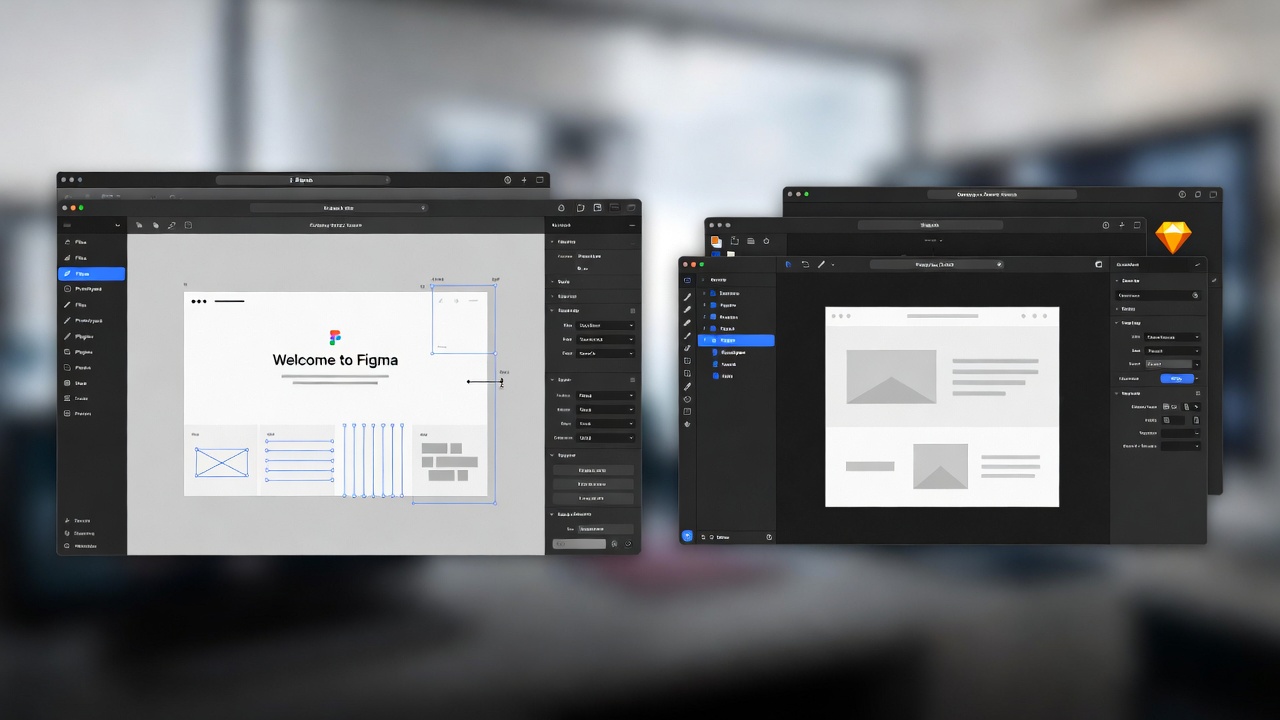
Design teams face a critical decision when picking their primary interface design platform. Two names dominate the conversation: Figma and Sketch. Both tools have shaped how designers create digital products, but they take very different approaches to solving the same problems.
This comparison breaks down everything you need to know about these design powerhouses. You'll discover which tool fits your workflow, budget, and team structure.
Platform Compatibility: Where Can You Use Each Tool?
The platform question often decides the debate before designers even test the features.
Figma runs entirely in your web browser. You can open it on Windows, Mac, Linux, or even a Chromebook. The browser-based approach means you're never tied to specific hardware. Students using school computers, freelancers switching between a desktop and laptop, or teams with mixed operating systems all work seamlessly together.
Figma also offers desktop apps for Mac and Windows. These apps provide better performance for complex files and work offline when you need them to. The experience stays consistent across all platforms.
Sketch only works on macOS. Apple's operating system is the only option. Windows users, Linux enthusiasts, and anyone without a Mac can't run Sketch natively. This limitation has pushed many teams toward alternatives.
Sketch introduced a web app in recent years. This browser version lets non-Mac users view and comment on designs. They can't create or edit files with the full feature set that Mac users enjoy. The web app serves as a companion tool, not a replacement for the native Mac application.
The platform difference impacts team composition immediately. Mixed-platform teams struggle with Sketch. All-Mac studios and agencies find this less problematic.
Try Figma
Download Sketch
Pricing Models: How Much Will You Actually Pay?
Budget conversations get complicated fast. Both tools have restructured their pricing multiple times.
Figma uses a freemium model with tiered subscriptions. The free plan gives individuals unlimited personal files and up to three Figma and three FigJam files. You can invite collaborators to view and comment on your work at no cost.
Professional plans start at $15 per editor per month (billed annually). This gets you unlimited files, advanced prototyping, shared libraries, and version history. Organization plans run $45 per editor monthly and add enterprise features like branching, libraries analytics, and advanced admin controls.
Teams only pay for editors who create and modify designs. Unlimited viewers and commenters join for free. A team of three designers paying for professional seats can collaborate with an entire company of stakeholders at no extra charge.
Sketch switched to a subscription model in 2021. The standard plan costs $12 per editor per month (annual billing) or $14 monthly. This includes the Mac app, unlimited cloud documents, and collaborative features.
Sketch previously sold perpetual licenses. Users paid once and owned that version forever. The company discontinued this option but still honors existing perpetual licenses. Those users can keep using their version indefinitely without updates.
The yearly cost comparison looks like this:
- Figma Professional: $180 per designer annually
- Sketch Standard: $144 per designer annually
Sketch appears cheaper on paper. The calculation shifts when you factor in viewer costs, platform requirements (Mac computers aren't cheap), and collaboration features.
Free tiers tell different stories too. Figma's free plan works for many freelancers and small projects indefinitely. Sketch requires payment after the 30-day trial ends.
Real-Time Collaboration: Working Together on Designs
Modern design happens in teams. The collaboration story separates these tools dramatically.
Figma built multiplayer collaboration into its foundation. Multiple designers edit the same file simultaneously. You see cursors moving across the canvas with names attached. Changes appear instantly for everyone viewing the file.
This Google Docs-style collaboration transforms how teams work. Designers pair-program on interfaces. One person creates components while another applies them to screens. Real-time feedback happens during creation, not hours later through comments.
Commenting happens directly on the canvas. Developers, product managers, and stakeholders click anywhere and leave feedback. Threads keep conversations organized. Notifications alert you when someone responds. The entire discussion lives alongside the design forever.
Sketch added collaboration features later in its development. The experience feels bolted on compared to Figma's native approach. Sketch uses a system where designers check files in and out of the cloud workspace.
Only one person edits a document at a time. Others must wait for the current editor to finish and save. This prevents the conflicts that happen when multiple people change the same file, but it also slows teams down.
Cloud documents in Sketch sync your work across devices. Team members access the latest version through the web app or Mac application. Comments work similarly to Figma's system. The feedback experience functions well enough for most teams.
The collaboration difference matters most for:
- Remote teams working across time zones
- Agencies presenting to clients during video calls
- Large design systems with multiple contributors
- Fast-paced startups iterating rapidly
Small teams or solo designers notice the difference less. If you rarely work simultaneously with other designers, Sketch's approach works fine.
Interface and Learning Curve: Getting Started
Both applications share similar core concepts. Designers familiar with vector editing tools adapt quickly to either platform.
Figma's interface lives in the browser. The toolbar sits along the top. Properties panels dock on the right. Layers stack on the left. The layout feels familiar to anyone who's used design software.
New users get productive fast. The learning curve stays gentle. Tutorials, templates, and a massive community provide support. Figma's help documentation covers every feature comprehensively.
Keyboard shortcuts mirror common design tools. The developers clearly studied what designers already knew and matched those expectations.
Sketch pioneered many interface design conventions. The Mac-native application follows Apple's design guidelines closely. Users comfortable with macOS applications feel right at home.
The toolbar, inspector, and layer list occupy predictable positions. Sketch's interface looks cleaner and less cluttered than Figma's in many views. The reduced visual noise helps some designers focus.
Performance feels snappier in Sketch for certain operations. Native Mac applications access system resources more efficiently than browser apps. Large files with hundreds of artboards scroll smoothly.
Both tools offer dark modes. Both support plugins and extensions. The fundamental interactions---creating shapes, applying effects, organizing layers---work almost identically.
The real learning happens in the advanced features. Prototyping, component systems, and design tokens require time investment in both applications.
Prototyping and Interactive Features
Static mockups tell part of the story. Interactive prototypes demonstrate how products actually work.
Figma includes robust prototyping without plugins. You connect frames with interaction triggers. Click, hover, drag, and keyboard events all work. Transitions between screens use smart animate, dissolve, slide, push, and more.
The prototype preview runs directly in the browser. You share a link and anyone can test the flow. No special software required. Stakeholders on phones, tablets, or computers all experience the same prototype.
Advanced prototyping supports variables, conditional logic, and mathematical expressions. You can build prototypes that store user input, calculate values, and branch based on conditions. The system handles everything from simple click-through demos to complex interactive experiences.
Overlays create modal dialogs and tooltips. Scrolling areas work within frames. Fixed headers and footers stay put while content scrolls beneath them. The prototyping capabilities rival some dedicated prototyping tools.
Sketch offers basic prototyping features. You link artboards together with hotspots. Transitions include slide, fade, and a few other options. The system handles common use cases like navigation flows and multi-screen journeys.
Prototypes preview in Sketch's Mac app or through a mobile preview app. The dedicated iOS and Android preview applications let you test designs on actual devices. This creates a more realistic sense of how mobile apps will feel.
For advanced prototyping, Sketch users often combine their designs with dedicated tools. Principle, ProtoPie, and InVision all integrate with Sketch. This modular approach gives you specialized prototyping power but adds tools to your workflow.
The prototyping comparison favors Figma for teams that want everything in one place. Sketch works well if you already use separate prototyping software or only need basic linking between screens.
Design Systems and Component Libraries
Scalable design requires reusable components. Both tools handle this differently.
Figma's component system uses variants. You create a base component with multiple variants for different states. A button component might have variants for default, hover, pressed, and disabled states. Size variants create small, medium, and large versions.
Variants live in a single component. The properties panel lets you switch between them. This keeps your component library organized and makes it easy to swap instances.
Auto Layout acts like CSS flexbox. Components resize intelligently based on their content. Add text to a button and it expands automatically. Remove an icon and the spacing adjusts. This flexibility makes components truly reusable across different contexts.
Team libraries publish components across your organization. One source of truth ensures consistency. Update a component in the library and every instance across all files can update too. Designers accept or reject updates individually.
Component properties let you customize instances without detaching them. Hide layers, swap content, or change text while maintaining the connection to the main component.
Sketch pioneered symbols for reusable design elements. Symbols work similarly to components but with less flexibility. You create a master symbol and place instances throughout your designs.
Overrides let you customize symbol instances. Swap text, change images, or hide layers. The system works well for straightforward components.
Libraries in Sketch sync symbols across documents. Your team shares a centralized library. Updates propagate to linked documents just like Figma's system.
Sketch lacks the sophisticated variants and auto-resizing features that Figma offers. Complex component systems require more manual work. Designers create separate symbols for each variation instead of combining them into a variant set.
Smart Layout adds some automatic resizing. Text layers push other elements when content changes. This helps but doesn't match Auto Layout's power.
Teams building extensive design systems find Figma's modern component features more powerful. Simpler projects work fine in either tool.
Plugins and Extensions Ecosystem
No design tool includes every feature every designer needs. Plugins fill the gaps.
Figma's plugin ecosystem has exploded since opening to developers. Thousands of plugins handle everything from generating realistic content to automating repetitive tasks. The Figma Community hosts plugins, making them discoverable and easy to install.
Popular plugins include:
- Unsplash for stock photography
- Content Reel for placeholder text and data
- Iconify for icon libraries
- Remove BG for background removal
- Chart for data visualization
Plugins run inside Figma. You don't leave the application to use them. The integration feels seamless.
Developers build plugins using JavaScript and Figma's API. The active developer community creates new tools constantly. Open-source plugins let you customize functionality.
Sketch popularized plugins for design tools. The plugin architecture launched before Figma existed. Many essential plugins appeared first on Sketch.
The Sketch plugin directory lists hundreds of options. Quality varies more than Figma's curated community. You'll find gems and outdated plugins side by side.
Installation happens through manual downloads or the Sketch plugin manager. The process works but feels less streamlined than Figma's one-click installs.
Many popular Sketch plugins have Figma equivalents now. The ecosystem advantage Sketch once held has diminished. Some specialized plugins remain Sketch-exclusive, particularly those deeply integrated with macOS or development tools.
Both platforms support powerful automation. Designers who learn to use plugins effectively multiply their productivity in either tool.
File Management and Version Control
Design files need organization. Projects involve dozens or hundreds of files. Version control prevents disasters.
Figma stores everything in the cloud by default. Your files live in projects within teams. The organizational hierarchy keeps work structured. You can also save files locally as .fig files for backup.
Version history automatically saves snapshots of your work. Scroll through the timeline and jump to any previous state. You never lose work permanently. Accidentally deleted something? Rewind time and grab it.
Branching lets teams experiment without affecting main files. Create a branch, try new ideas, then merge changes back or abandon the experiment. This workflow mirrors software development practices.
Sketch saves files to your local Mac drive. The .sketch file format works like any document. You organize files using Finder folders. This traditional approach gives you complete control over file storage.
Cloud documents provide version history and team access. The system works like Sketch's answer to Figma's default behavior. You choose which files to store in the cloud workspace.
Version history in cloud documents shows major saves. The timeline isn't as granular as Figma's automatic snapshots. You manually save versions when you want to mark important milestones.
Git integration through third-party tools brings developer-style version control to Sketch. Abstract and Kactus add branching, merging, and advanced version management. These tools require setup and learning but provide powerful workflows for larger teams.
Figma's automatic cloud saving prevents lost work. Sketch's local files give you control but require discipline around backups and versions.
Handoff to Developers
Designers create. Developers build. The handoff process makes or breaks implementation.
Figma generates CSS, iOS, and Android code automatically. Developers inspect designs and copy code snippets. The inspect panel shows spacing, colors, typography, and layout properties in developer-friendly formats.
Dev Mode (added in recent updates) creates a dedicated space for developer workflows. Developers see which designs are ready to build, compare changes between versions, and track implementation status. The separation between design and development modes reduces confusion.
Plugins like Anima export HTML and React components. Zeplin still integrates with Figma for teams that prefer its handoff experience. The flexibility supports different development workflows.
CSS Grid and Flexbox values appear when you use Auto Layout. Developers get proper layout code instead of absolute positioning. This makes responsive implementation easier.
Sketch includes code inspection in the Mac app and web viewer. Developers see the same types of information: sizes, colors, fonts, and spacing. The format matches what they need for implementation.
Export options create assets in multiple resolutions. Developers get @1x, @2x, and @3x versions automatically. SVG export keeps icons crisp at any size.
Sketch integrates with Zeplin, InVision, and similar handoff tools. Many teams prefer these dedicated platforms over built-in features. The separation of concerns lets specialists build better handoff tools.
API access in both platforms enables custom handoff workflows. Larger organizations build internal tools that extract design data and feed it into their development pipelines.
The handoff experience works well in both tools. Team preferences and existing workflows matter more than specific features.
Performance with Large Files
Small projects run smoothly everywhere. Large design systems stress test applications.
Figma slows down with extremely large files. Files containing thousands of components and hundreds of screens take longer to load. The browser-based architecture has limits.
The development team constantly improves performance. Recent updates made significant gains. Most teams never hit performance walls in normal work.
Best practices help: organize files into smaller documents, use team libraries instead of copying components everywhere, and archive old work into separate files.
Sketch handles large files more gracefully. The native Mac application accesses system resources efficiently. Memory management and rendering performance exceed browser capabilities.
Teams working on massive design systems or files with extremely high artboard counts prefer Sketch's performance characteristics. The difference becomes noticeable at scale.
File size matters too. Sketch files can grow large but compress well. Figma's cloud storage handles this transparently. Neither tool should make you worry about file sizes in normal use.
For most designers, performance differences won't impact daily work. Edge cases exist where one tool clearly outperforms the other.
Mobile App Support
Design happens everywhere. Mobile apps extend your workspace.
Figma offers mobile apps for iOS and Android. The apps let you view, comment, and present designs from your phone or tablet. You can't create complex designs, but you can make quick edits to text and properties.
The mobile apps excel at presenting work to clients and stakeholders. Pull out your phone and walk through prototypes anywhere. Collect feedback on the go.
Mirror mode displays your desktop canvas on a mobile device in real-time. This lets you preview responsive designs at actual size while working on your computer.
Sketch provides Mirror apps for iOS. The app connects to Sketch running on your Mac and displays your canvas. This previews mobile designs at actual size during creation.
The Sketch mobile experience focuses on preview rather than editing. You can't make changes from your phone. The apps serve as presentation and review tools only.
Both approaches acknowledge the reality that serious design work happens on computers. Mobile apps complement desktop workflows rather than replacing them.
Integration with Other Tools
Design tools live in larger ecosystems. Integrations multiply their value.
Figma connects with popular productivity and development platforms. Slack notifications update teams when designs change. Jira issues link to design files. Microsoft Teams shows Figma previews.
Import options bring designs from Sketch and Adobe XD. You can migrate existing work without starting over.
Export formats include PNG, JPG, SVG, and PDF. The options cover standard use cases. Developers grab SVG code or export assets directly.
Sketch integrates deeply with the Apple ecosystem. iCloud syncing, macOS feature support, and system-level integrations work seamlessly.
Import from Figma lets teams evaluate Sketch without abandoning existing work. The conversion handles most files well.
Sketch plugins connect to countless services. Third-party developers have built integrations with almost every tool designers use.
Both platforms support common file formats. Moving work between tools creates friction but remains possible.
Customer Support and Learning Resources
Getting stuck happens. Quality support resources get you unstuck.
Figma maintains extensive documentation. Written guides cover every feature. Video tutorials demonstrate workflows. The Best Practices section teaches smart techniques.
The Figma Community shares knowledge. Designers publish tutorials, templates, and resources. You'll find examples of almost anything you want to build.
Email support responds to problems. Response times vary based on your plan level. The free tier gets basic support. Paid plans receive priority assistance.
Sketch offers similar documentation depth. The help section explains features clearly. Video content demonstrates concepts visually.
Community forums let users help each other. Sketch employees participate and answer questions. The community feels smaller and more focused than Figma's massive user base.
Email support assists paid users. The support team knows the product deeply and provides helpful responses.
Both companies invest in helping users succeed. The resource quality meets professional standards.
Which Tool Fits Your Needs?
The "better" tool depends entirely on your situation.
Choose Figma if you:
- Work on Windows, Linux, or mixed-platform teams
- Collaborate in real-time with other designers frequently
- Want powerful prototyping without additional tools
- Need sophisticated component systems with variants
- Prefer browser-based tools you can access anywhere
- Work with remote teams across different locations
- Want a generous free tier to start
Choose Sketch if you:
- Work exclusively on Mac
- Prefer native applications over web apps
- Already use macOS development tools
- Need maximum performance with huge files
- Have existing Sketch files and workflows
- Want a slightly lower subscription cost
- Value the traditional file-based approach
Both tools create professional interface designs. Both support modern design workflows. Both serve thousands of successful companies.
The platform requirement eliminates Sketch for non-Mac users immediately. Windows and Linux designers have no choice---Figma wins by default.
Mac users face a real decision. Collaboration needs usually tip the scales. Remote teams and agencies benefit dramatically from Figma's real-time features. In-person teams or solo designers find less advantage.
Making the Switch
Changing design tools disrupts workflows. Plan the transition carefully.
Moving from Sketch to Figma requires importing existing files. Figma's import feature handles Sketch files directly. Components, symbols, and most styling convert automatically. Complex files might need cleanup.
Relearn keyboard shortcuts and menu locations. The concepts transfer but the specific interactions differ. Budget a week or two to regain full speed.
Team training takes time. Run parallel workflows during transition periods. Keep old files accessible while building new work in the new tool.
Moving from Figma to Sketch works similarly. Sketch imports Figma files with reasonable fidelity. Advanced features like variants need reconstruction.
The platform requirement adds complexity. Teams moving to Sketch must ensure everyone has Mac computers.
Many teams run both tools during evaluation periods. Test real projects before committing. The small cost of parallel subscriptions prevents expensive mistakes.
The Final Verdict
Figma has captured the market for good reasons. Cross-platform support, real-time collaboration, and powerful features explain its popularity. The majority of new designers learn Figma first. Job listings increasingly specify Figma experience.
Sketch remains excellent for Mac-focused teams. The native performance and traditional workflows suit certain organizations perfectly. Agencies deeply invested in Apple's ecosystem find it comfortable.
The industry has spoken through adoption numbers. Figma dominates new projects. Sketch maintains a loyal user base but stopped growing like it did in earlier years.
Your specific needs matter more than general trends. Test both tools. Most designers develop strong preferences quickly. Trust your instincts about which interface feels natural.
Both companies continue improving their products. Features today might expand tomorrow. Stay current with updates and new capabilities.
Start with Figma's free plan or Sketch's trial. Invest real time creating actual projects. Read documentation, watch tutorials, and join communities. The best design tool is the one you'll actually master.
Start with Figma Free
Try Sketch Free Trial