Hey there, fellow creators! If you love whipping up eye-catching graphics, social media posts, or even full-blown presentations, you've probably heard of Canva and Adobe Express. These two giants dominate the world of online design tools, making it simple for anyone to create professional-looking stuff without needing a degree in graphic design. But which one suits you best? In this deep dive, I'll break down everything from features to pricing, so you can decide with confidence. We'll explore how each tool stacks up in real-world use, highlight key differences, and even toss in a handy comparison table. Let's jump right in and see what makes these design apps tick.
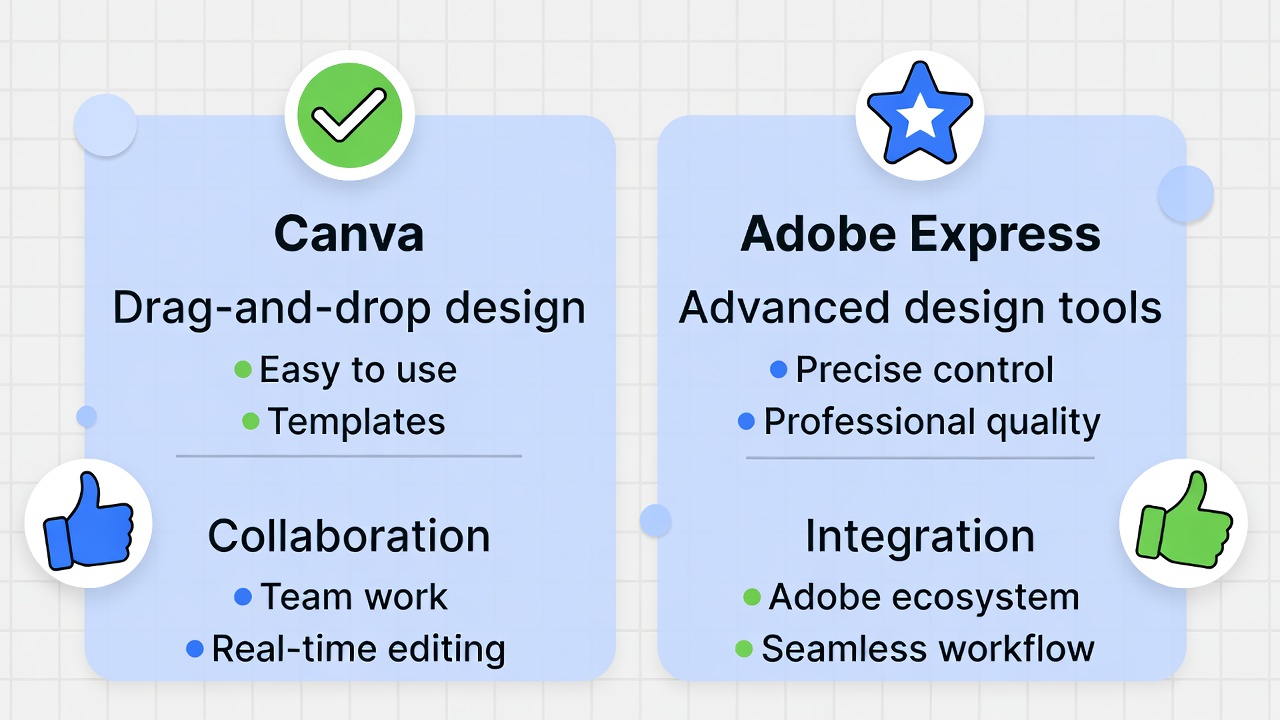
First off, both Canva and Adobe Express serve as go-to platforms for graphic design enthusiasts, small business owners, marketers, and hobbyists. They pack user-friendly interfaces that let you drag and drop elements like images, text, and shapes. You can start from scratch or grab pre-made templates to speed things up. However, they shine in different areas—Canva often wins for its massive template library and team collaboration perks, while Adobe Express impresses with seamless ties to pro-level Adobe software and advanced AI tricks. So, if you're hunting for a visual design platform that fits your workflow, stick around.
Diving into Canva: Your All-in-One Creative Hub
Canva bursts onto the scene as a versatile graphic design app that empowers users to craft everything from Instagram stories to business cards. It started as a simple way for non-designers to make beautiful visuals, and now it handles photo editing, video creation, and even website building. You log in, pick a project type—like a poster or resume—and boom, you're off to the races with intuitive tools.
What sets Canva apart? Its enormous collection of templates covers just about any need. Think social media graphics, infographics, flyers, or invitations. You customize them easily by swapping colors, fonts, and images. The drag-and-drop editor feels natural, so beginners feel at home right away. Plus, Canva integrates stock photos, icons, and illustrations directly into your workspace, saving you trips to external sites.
On the collaboration front, Canva excels. You invite team members to edit designs in real time, leave comments, or share links for feedback. This makes it ideal for groups working on marketing materials or school projects. It also offers brand kits where you store your logos, color palettes, and fonts for consistent branding across projects.
Canva's AI features add extra magic. Tools like Magic Resize let you adapt a design to different sizes with one click—perfect for turning a Facebook post into a Twitter header. The background remover strips away unwanted parts of images effortlessly, and Magic Studio generates text or images based on your prompts. If you edit videos, Canva provides trimming, effects, and music overlays to polish your clips.
For integrations, Canva connects with apps like Google Drive, Dropbox, and social platforms. You schedule posts directly to Instagram or LinkedIn, streamlining your content calendar. Security-wise, it uses encryption and lets you control sharing permissions.
In short, Canva acts as a creative software powerhouse for everyday users. It balances ease with power, so you produce stunning results fast. Ready to give it a spin? Get Started with Canva
Exploring Adobe Express: The Speedy Design Companion with Pro Roots
Adobe Express steps up as a streamlined version of Adobe's heavyweight tools, like Photoshop and Illustrator. It targets quick design tasks, helping you create social graphics, videos, and flyers on the fly. If you're familiar with Adobe's ecosystem, this app feels like home, but it welcomes newcomers too.
At its core, Adobe Express delivers a clean interface for photo manipulation and layout building. You select from thousands of templates tailored for platforms like YouTube thumbnails or Pinterest pins. The editor lets you layer elements, apply filters, and tweak text with precision. One standout is its Quick Actions—think removing backgrounds or converting videos to GIFs in seconds.
AI plays a big role here. Firefly, Adobe's generative AI, creates images from text descriptions, fills in parts of photos, or generates text effects. This beats basic tools by offering commercially safe outputs, meaning you use them worry-free in business. For video editors, Adobe Express handles cropping, merging clips, and adding captions automatically.
Collaboration happens smoothly too. You share projects for edits or approvals, and it syncs with Adobe Creative Cloud for deeper work in apps like Premiere. Brand kits keep your assets organized, ensuring every design matches your style.
Integrations shine with ties to Adobe Stock for high-quality images and videos. You also connect to social channels for direct posting and scheduling. On mobile, the app runs fluidly, letting you design anywhere.
Adobe Express bridges casual and professional design worlds. It gives you pro-grade features without the steep learning curve. Curious? Try Adobe Express Free
Breaking Down the Features: Where They Overlap and Differ
Now, let's compare the nuts and bolts. Both tools offer core functions like template-based design, image editing, and export options. But dig deeper, and unique strengths emerge.
Start with templates. Canva boasts over 3.6 million options in its premium plans, spanning categories like presentations and ebooks. Adobe Express counters with around 350,000 professionally curated ones, focusing on quality over quantity. If variety matters, Canva pulls ahead; for polished, brand-ready starters, Adobe holds its own.
Editing tools see Adobe Express edging out with advanced options like unflattened PDF exports, which let you tweak layers later. Canva flattens PDFs, so edits require starting over. However, Canva's Magic Resize and bulk editing save time on repetitive tasks.
AI capabilities spark excitement in both. Canva's Magic Studio includes text-to-image generation, auto-animations, and smart charts. Adobe's Firefly goes further with video generation and object removal, plus integration with models from Google and OpenAI. If AI-driven creativity tops your list, Adobe might thrill you more.
Collaboration features favor Canva for teams. It supports unlimited folders, task assignments, and approvals in higher plans. Adobe Express allows real-time co-editing but lacks deep team management like reports or AI controls.
For integrations, Adobe links tightly with Creative Cloud apps, ideal if you use Photoshop. Canva connects to more third-party services, including Meta Ads and data importers.
Video creation tools differ too. Adobe Express exports in 4K and handles longer clips in premium versions. Canva keeps it simple with beat-sync and voice enhancements but caps at basic edits.
Storage varies by plan, but both start at 5GB free and bump to 100GB or more paid. Mobile apps for each run smoothly, though Canva's feels more feature-packed for on-the-go work.
In essence, these online editors cater to similar needs but tweak the experience. Canva feels expansive and fun, while Adobe delivers refined, pro-oriented polish.
Pricing Showdown: Value for Your Buck
Money talks, right? Let's unpack the costs so you see where your dollars go.
Canva kicks off with a solid free plan: 5GB storage, over 1.6 million templates, and basic AI tools. It limits premium assets and advanced features, though.
Step up to Canva Pro at $15 per month for one user. You get 100GB storage, 141 million premium stock items, one brand kit, and higher AI access. Perfect for solo creators needing extras like content scheduling.
For teams, Canva Business runs pay-as-you-go, starting around $20 per person monthly, with 500GB storage, 100 brand kits, and team reports. Enterprise customizes for large groups, adding SSO and 1TB storage.
Educators and nonprofits snag premium perks for free or discounted.
Adobe Express free tier gives 5GB storage, 220,000 templates, and limited AI credits. Watermarks hit premium content, and exports stay basic.
Premium costs $9.99 monthly, unlocking 100GB storage, 200 million assets, 250 AI credits, and brand kits. It includes advanced video tools and no watermarks.
Firefly Pro, at a higher price (around $19.99), amps AI to 4,000 credits and adds full Photoshop access.
No separate team plans, but premium features support small groups with admin tools.
Bottom line: Adobe saves cash for individuals, but Canva scales better for teams. Both offer trials—check them out.
Ease of Use: Who Wins the Simplicity Race?
Both apps prioritize user-friendliness, but nuances matter.
Canva's interface greets you with a search bar and project suggestions. You find tools intuitively, and tutorials pop up when needed. Beginners create pro designs in minutes, thanks to smart suggestions.
Adobe Express mirrors this but draws from Adobe's pro apps, so some terms might confuse newbies. Yet, its clean layout and quick actions make tasks speedy. If you know Photoshop basics, you'll fly; otherwise, it takes a tad longer to master.
Overall, Canva edges for pure beginners, while Adobe suits those wanting a step toward advanced software.
Pros and Cons: The Real Scoop on Canva
Canva brings tons to the table. Pros include its vast template library that sparks ideas instantly. Collaboration rocks for remote teams, and AI tools like Magic Edit transform average images into gems. Pricing fits various budgets, and the mobile app lets you design from your phone seamlessly.
On the flip side, free users miss premium stock, and exports sometimes flatten, limiting post-edits. Customer support can lag for non-pro users, and advanced designers might crave more customization.
Still, Canva thrives as a graphic design app for quick, collaborative projects.
Pros and Cons: Adobe Express Under the Lens
Adobe Express wows with high-quality assets from Adobe Stock—no hunting for subpar images. AI integration feels cutting-edge, generating videos or effects that pop. Cheaper premium for solos, plus Creative Cloud sync, makes it versatile. Exports in unflattened formats save headaches later.
Drawbacks? Fewer templates mean less variety, and team features don't match Canva's depth. AI credits cap monthly, potentially frustrating heavy users. The interface, while slick, assumes some design know-how.
It excels as a photo editing app with pro aspirations.
Head-to-Head Comparison Table
Here's a quick snapshot to visualize the differences:
| Feature | Canva | Adobe Express |
|---|
| Free Storage | 5GB | 5GB |
| Premium Storage | 100GB (Pro), 500GB (Business) | 100GB (Premium) |
| Templates | 3.6M+ premium | 350K+ premium |
| Stock Assets | 141M+ premium | 200M+ premium |
| AI Credits (Monthly) | High (Pro), Higher (Business) | 250 (Premium), 4,000 (Firefly Pro) |
| Brand Kits | 1 (Pro), 100 (Business) | Available in Premium |
| Video Export | Basic, no 4K mentioned | Up to 4K in Premium |
| Collaboration | Advanced team tools, approvals | Real-time editing, basic sharing |
| Integrations | Meta Ads, data connectors | Creative Cloud, Adobe Stock |
| Premium Price (Individual) | $15/month | $9.99/month |
| Best For | Teams, variety seekers | Solos, AI enthusiasts |
This table pulls from key sources for accuracy.
Who Thrives with Canva?
Canva fits like a glove for small businesses, educators, and content creators who juggle multiple projects. If you value endless templates and strong team features, it delivers. Marketers love the scheduler, and freelancers appreciate the brand consistency tools. Nonprofits and schools get extra love with free upgrades.
Who Excels with Adobe Express?
Adobe Express calls to artists and pros already in the Adobe world. Solopreneurs on a budget dig the lower price and AI power. Video creators benefit from advanced edits, and anyone needing high-res exports finds relief here. It's a smart pick for bridging casual and expert design.
Wrapping It Up: Your Next Design Move
So, there you have it—a thorough look at Canva vs Adobe Express. Both shine as top-tier design software options, but your choice hinges on needs. Need breadth and teamwork? Go Canva. Crave AI depth and affordability? Pick Adobe. Test the free versions to feel them out. Whichever you choose, you'll boost your creative game. Happy designing!