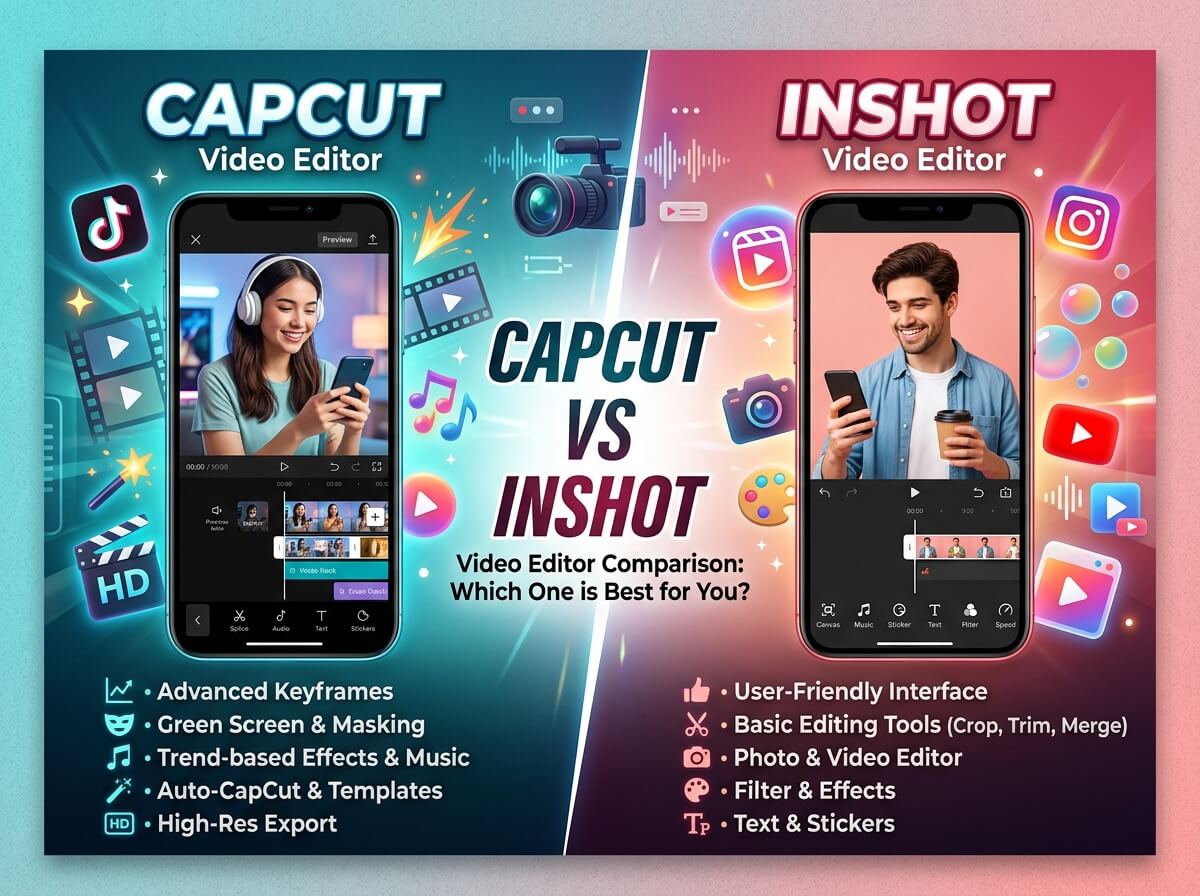
When it comes to editing videos on your phone, you've got two heavyweight champions battling it out: CapCut and InShot. Both apps have millions of devoted users, and both come packed with features that would've seemed impossible just a few years back. But here's the thing—they're quite different beasts, and knowing which one suits your needs can make all the difference between creating stunning content and pulling your hair out in frustration.
Let's dive into a detailed comparison that'll help you figure out which video editing tool actually belongs on your phone.
What Makes These Video Editors Stand Out?
CapCut and InShot have completely transformed mobile video editing. Gone are the days when you needed professional equipment or complex desktop software to create polished videos. These apps let regular people—TikTok creators, Instagram enthusiasts, YouTube content makers, and casual users—edit videos right from their pocket.
The race between these two platforms has intensified as both platforms constantly roll out new features and improvements. Understanding what each one does best gives you the power to make a smart decision based on your actual needs.
CapCut: The Feature Powerhouse
Download CapCut - Official Website
CapCut started as ByteDance's little-known video editor and exploded into popularity around 2020. What sets it apart? Raw power, seriously. This app treats mobile editing like desktop software treats it, but squeezed into your smartphone.
Standout Features of CapCut
The editing timeline in CapCut feels natural and responsive. You get smooth scrubbing, easy trimming, and the ability to layer multiple clips without the app choking. The speed adjustments work flawlessly—slow down a dramatic moment or speed up a montage with precision. You can adjust the speed frame by frame if you want to get that granular with it.
The AI tools have impressed a lot of creators. The auto-captions feature actually works remarkably well, picking up dialogue and generating text overlays without you manually typing everything. The background remover uses AI to isolate subjects—handy for creating green screen effects without an actual green screen. The video translation feature opens doors for creators wanting to reach international audiences.
Effects and transitions? CapCut has an enormous library. You'll find everything from subtle fades to wild glitch effects. The effects load smoothly, and they don't slow down your playback, which matters when you're previewing your work repeatedly.
The keyframe animation system lets you create dynamic movements. You can make text fly across the screen, zoom in on specific areas, or create complex animations that would look equally impressive in professional software. Once you learn how keyframes work, you'll find yourself creating more ambitious edits.
Color correction tools in CapCut cover the essentials and then some. Adjust brightness, contrast, saturation, and hue with intuitive sliders. The color grading presets give instant cinematic looks. You can also use curves for more advanced color work, which honestly surprised me the first time I saw it in a mobile app.
The music library integrates directly with the app. Search for tracks, preview them, and drop them into your timeline. You get commercial-use licenses for most tracks, which matters if you're creating content you plan to monetize.
The Performance Reality
CapCut handles large projects without becoming a slideshow. The app exports videos efficiently and maintains quality during the process. Even on older phones, you can create decent videos, though newer devices obviously give you more breathing room when working with high-resolution footage.
The learning curve isn't brutal. First-time users can jump in and start creating within minutes, but the deeper features reward exploration and practice.
InShot: The Simplicity Specialist
Download InShot - Official Website
InShot takes a different approach entirely. Instead of throwing everything at you, it focuses on doing essential tasks exceptionally well. The interface feels clean and straightforward, which appeals to people who want results fast without navigating complex menus.
What Makes InShot Special
The trim and cut tools in InShot feel satisfying. The interface makes it obvious what's happening—your selected section highlights clearly, and the preview updates instantly. You trim clips with confidence because you can see exactly what you're keeping and what's getting cut.
The photo-to-video transitions stand out. If you're creating slideshows or mixing photos with video clips, InShot makes these transitions feel natural. The zoom and pan effects applied to still images create movement that keeps the viewer engaged.
The text overlay system in InShot works elegantly. Choose your font, size, color, and animation—then place it on screen. The animations look polished and contemporary. The font selection is solid, with good variety that covers most creative needs.
For music, InShot provides a decent library of free tracks plus integration with other music sources. Add music, adjust its timing, and control the volume with simple sliders. The music doesn't sync automatically to beats, but you can manually adjust timing.
The speed ramping works smoothly. Create slow-motion effects in part of your video while keeping other sections at normal speed. This technique works great for emphasizing key moments in storytelling.
The blending modes and layering system exists but feels simpler compared to CapCut. You can layer multiple elements, but the options feel more limited. This simplicity is intentional—InShot aims for "easy to use" rather than "capable of everything."
The User Experience Reality
New users don't need tutorials to figure out InShot. The interface communicates through visual design what each button does. Presets and templates mean you can create decent videos without knowing any technical tricks.
The trade-off comes when you want to do something advanced. If you're thinking "can InShot do this complex animation?" the answer often involves workarounds or just accepting that the app has limits.
Feature Comparison: Side-by-Side Breakdown
Here's how these two stack up across the specific features that matter most to video creators:
| Feature | CapCut | InShot | Winner |
|---|
| Ease of Use | Moderate (takes practice) | Very Easy (intuitive) | InShot |
| AI-Powered Captions | Excellent auto-captions | Manual only | CapCut |
| Background Removal | AI-powered | Not available | CapCut |
| Effects Library | 1000+ effects | 500+ effects | CapCut |
| Transitions | Extensive variety | Good selection | CapCut |
| Color Correction | Advanced tools | Basic tools | CapCut |
| Timeline Control | Professional-grade | Simplified | CapCut |
| Text Animation | Strong selection | Good variety | CapCut |
| Music Library | Large integrated | Decent selection | CapCut |
| Keyframe Animation | Full support | Limited | CapCut |
| Video Speed Control | Frame-by-frame | Basic ramping | CapCut |
| Trimming/Cutting | Good | Excellent | InShot |
| Photo-to-Video Transitions | Good | Excellent | InShot |
| Export Quality | Up to 4K | Up to 4K | Tie |
| Watermark (Free) | Yes (CapCut branding) | Yes (InShot branding) | Tie |
| Free Tier Capability | Extensive | Extensive | Tie |
| Premium Cost | $4.99/month | $9.99/month | CapCut |
| Subtitle Generation | Advanced | Manual | CapCut |
| Green Screen Effect | AI-powered | Simple | CapCut |
| Learning Curve | Moderate | Minimal | InShot |
Which One Should You Actually Use?
This depends entirely on what you're trying to create and how you like to work.
Pick CapCut If You're...
Creating content for TikTok, YouTube Shorts, or Instagram Reels? CapCut owns this space. The platform understands the vibe of short-form content and provides tools specifically built around it.
Working with dialogue-heavy content that needs captions? The automatic caption generation saves enormous amounts of time. You get usable captions in seconds rather than typing for minutes.
Experimenting with different visual styles? The effects library and animation capabilities let you try wild things without immediately deleting them. The undo system is generous.
Creating regularly and building a workflow? Spending time to learn CapCut's interface pays off. You'll develop muscle memory and speed up substantially.
Want to add sophisticated animations or effects? The keyframe system opens creative possibilities that go beyond what most mobile apps allow.
Need AI tools like background removal or video translation? These features exist natively in CapCut and work remarkably well.
Pick InShot If You're...
Just getting started with video editing? The approachable interface means you make your first decent video in 10 minutes instead of 30.
Creating simple cuts and transitions? The tool excels at the basics. You don't need advanced features if basic features are all you're doing.
Mixing photos and videos together? The photo transition effects are genuinely better than what CapCut offers.
Want to avoid spending time learning complex software? InShot gets out of your way and lets you create without thinking about the tools.
Editing occasionally rather than regularly? You don't invest learning curve if you edit once monthly.
Prefer a minimal interface that feels less overwhelming? Some people find CapCut's options paralyzing rather than liberating. InShot feels lighter and less intimidating.
The Practical Performance Comparison
Both apps run on any reasonably modern smartphone. Android or iOS—they're both available across platforms.
CapCut consumes more storage space on your device. The app itself is larger, and it caches files during editing, so you need decent free space. On a phone with limited storage, this becomes annoying.
InShot takes up less room and doesn't demand as much from your device. If you've got a budget phone from a few generations back, InShot feels more appropriate.
Exporting times depend on your video resolution and effects complexity. Both handle 1080p smoothly. 4K exports take longer on both platforms, but CapCut handles large files somewhat better.
Battery drain varies based on editing complexity. Heavy effect-laden edits in CapCut drain battery faster than simple cuts in InShot. If you're editing while traveling without access to charging, this matters.
The Learning Investment
CapCut's tutorial section is decent, but you'll really benefit from watching YouTube tutorials made by experienced creators. The official tutorials cover basics, but the platform has so many possibilities that independent creators have built comprehensive guides.
InShot requires minimal learning. Pick it up, open it, and you'll figure out what most buttons do within minutes. This is intentional design—the interface teaches itself.
Budget Considerations
Both apps offer free tiers with substantial capabilities. You can create full videos without spending money.
CapCut's premium membership costs around $4.99 monthly. The main benefit is removing the watermark. Most features that make CapCut powerful are available free.
InShot's premium runs about $9.99 monthly. Again, the main advantage is the watermark removal, plus access to a larger music library.
If money's tight, both apps create professional-looking results without premium subscriptions. The watermark is visible but not huge or obnoxious.
Editing Workflow Reality
Here's how a typical editing session flows in each app:
CapCut workflow: Open → Import clips → Arrange timeline → Trim sections → Apply effects/transitions → Add text with animations → Adjust colors → Add music → Preview → Export
InShot workflow: Open → Import clips → Arrange clips → Trim → Add transitions → Add text → Add music → Preview → Export
CapCut's workflow includes more intermediate steps because you have more control at each stage. InShot's workflow is more direct because it makes assumptions about what you want to do.
Neither approach is wrong. One feels like piloting and the other feels like riding. Pick what matches your working style.
When Export Quality Actually Matters
Both apps export at high quality. Bitrate handling is good on both platforms. Your exported video will look crisp on Instagram, TikTok, YouTube, or anywhere else you post it.
The differences only appear when you're doing heavy color grading or working with professional footage. For content creation, both outputs look equivalent.
The Mobile Editing Reality in 2025
Mobile video editing has matured significantly. The gap between "what you can do on a phone" versus "what you can do on desktop" has narrowed dramatically. Both CapCut and InShot represent the best of what's possible on mobile platforms.
Five years back, choosing between them would've been easier because one would've clearly dominated. Now they're both genuinely capable, just oriented toward different types of users.
Red Flags for Each Option
CapCut concerns: The app is owned by ByteDance, which is a Chinese company. Some users worry about data privacy, though there's no evidence the app does anything nefarious. The complexity overwhelms absolute beginners. Updates sometimes introduce bugs that take weeks to patch.
InShot concerns: The learning ceiling appears quickly. Advanced creators outgrow it fast. The effect library, while decent, feels limited once you've explored everything. Customer support through the app is minimal—you mostly rely on email.
Common Questions Answered
Can you edit 4K video on mobile? Yes, both apps handle 4K footage, though your phone needs decent specs. Playback might stutter on older devices, but export works fine.
Does watermark removal matter? Not really. The watermark is small. Most viewers don't notice or care. Pay for it only if the tiny branding genuinely bothers you.
Which one is "better" for YouTube? CapCut, because the effects and transitions give your content more visual interest, which helps with watch time.
Is mobile editing "professional" enough? Absolutely. Plenty of creators make serious money using these exact tools. Professional isn't about the equipment—it's about effort and skill.
Can you edit someone else's video without owning the footage? Yes, both apps let you import existing videos from your phone's gallery.
Making Your Final Decision
You don't actually have to choose one. Download both, try each with a short 30-second clip, and see which interface makes sense to your brain. Five minutes of hands-on experience beats hours of reading comparisons.
If you're uncertain, start with InShot. Get comfortable editing, create some videos, and then explore CapCut once you understand basic video editing concepts. Many creators use both—CapCut for complex projects and InShot for quick edits.
The Bottom Line
CapCut is the power tool. It does everything, offers incredible flexibility, and rewards learning. If you're serious about video creation, it's your answer. The tools exist to support ambitious editing.
InShot is the simplified editor. It handles essential tasks beautifully and doesn't clutter your experience with unnecessary complexity. If you want to create without overthinking the technology, it delivers.
Neither choice locks you in. Both platforms sync with cloud storage, both export standard video files. You can switch back and forth, use both for different projects, or pick one and stick with it.
The video editing landscape has genuinely excellent options for mobile creators. Whatever you pick between these two, you're starting with capable software that'll grow with your skills and ambitions.
Download one today, import a clip, and start creating. The tools are ready whenever you are.
Resources: