When it comes to editing images without installing software, the online editor market offers some fantastic options. Two names that keep popping up are Fotor and Pixlr. Both tools promise to deliver professional results without the learning curve of Photoshop, but they work quite differently from each other.
I've tested both extensively, and I'm here to break down exactly what you get with each platform. By the end of this guide, you'll know which one fits your needs—whether you're a small business owner, content creator, or someone who just wants to touch up photos quickly.
What Is Fotor?
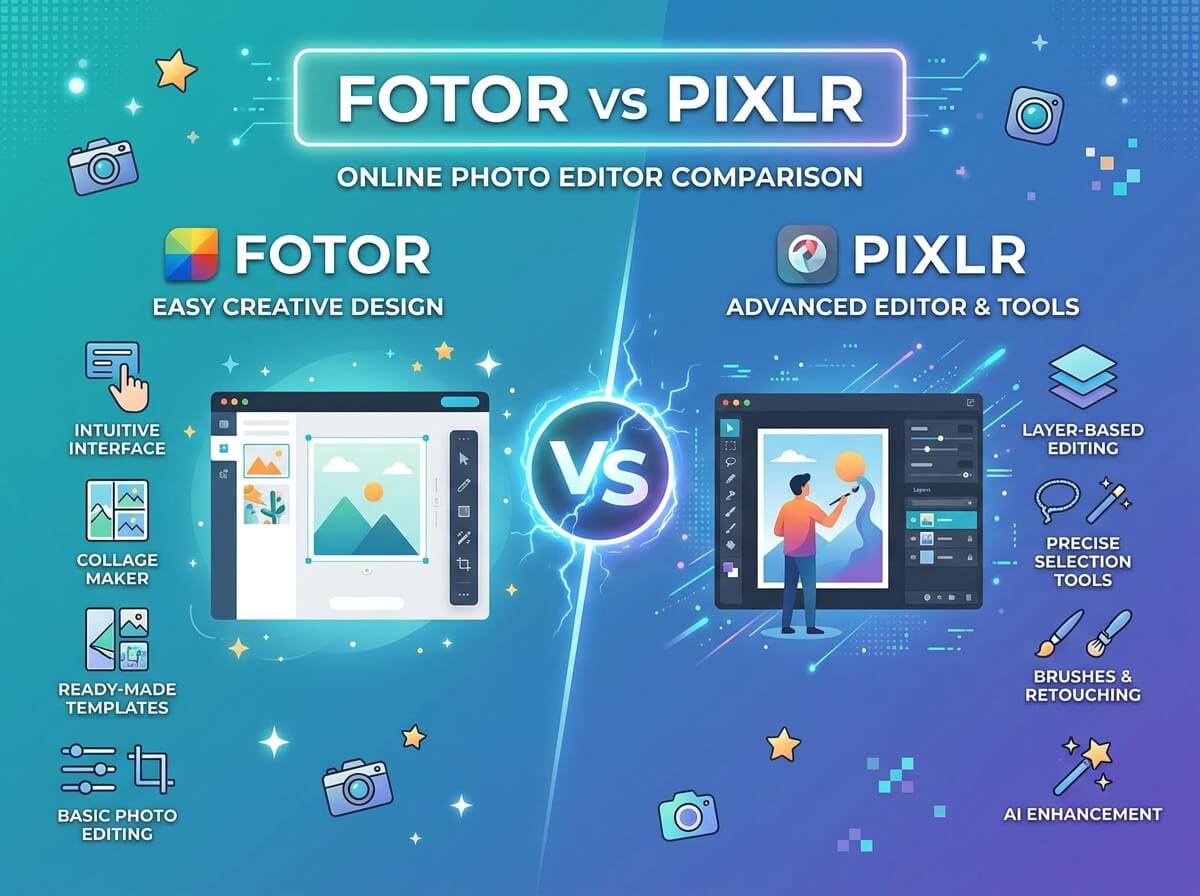
Fotor is a cloud-based photo editor that's been around for quite some time. It positions itself as an all-in-one solution for photo editing and design. The platform handles everything from basic photo touch-ups to creating social media graphics, collages, and even posters.
The interface is clean and intuitive. Most people can jump in and start editing within minutes. Fotor doesn't overwhelm you with options—instead, it offers smart presets and AI-powered features that do the heavy lifting for you.
One thing that stands out about Fotor is its design templates. They've built an entire library of pre-made layouts for Instagram posts, Facebook covers, business cards, and more. This is incredibly useful if you need to create branded content quickly.
Key Fotor Features:
- AI photo enhancement
- Background removal tools
- Batch editing capabilities
- Extensive template library
- Collage maker
- Design templates for social media
- HDR effect
- Beauty filters and retouching tools
What Is Pixlr?
Pixlr takes a different approach. It's positioning itself as a lighter, more accessible version of Photoshop. The tool has been evolving over the years and now offers both a simple mode and an advanced mode.
Pixlr appeals to users who want more control over their editing but still don't want to deal with the complexity of desktop software. The platform has a split personality—you can do basic edits quickly, or you can dive deeper into more advanced adjustments.
The interface in advanced mode is more Photoshop-like, with layers, blend modes, and adjustment options. This means it has a steeper learning curve than Fotor, but it also means you have more creative freedom.
Key Pixlr Features:
- Layer-based editing (Advanced mode)
- Batch processing
- AI background removal
- Extensive filter library
- Drawing and painting tools
- Text editing with effects
- Adjustment layers
- Custom brush support
Ease of Use: Where Each Tool Excels
Here's where the two editors start to diverge significantly.
Fotor is built for speed. You open an image, apply some enhancements, maybe add text, and you're done. The learning curve is nearly flat. Even if you've never edited a photo in your life, Fotor won't intimidate you.
The preset-heavy approach means most of your editing happens with a single click. Want to make your photo brighter? One click. Want to remove red-eye? One click. Fotor does the thinking for you.
Pixlr, on the other hand, gives you more to think about. If you jump straight into advanced mode, you'll see familiar tools like layers, selection tools, and adjustment panels. This is great if you have some photo editing experience, but it can feel overwhelming if you don't.
That said, Pixlr does offer an "Express" mode that simplifies things considerably. In Express mode, the interface looks more like Fotor—cleaner, more straightforward. But you lose access to some of the advanced tools.
The advantage goes to Fotor if you want simplicity. Choose Pixlr if you want control.
Image Editing Capabilities
Both tools handle basic and intermediate editing tasks well. Let's dig into the specifics.
Photo Enhancement
Fotor's AI enhancement works remarkably well. You can upload a dull photo, click "Enhance," and the software automatically balances exposure, saturation, and contrast. The results are genuinely impressive for a one-click tool.
Pixlr offers manual controls for these same adjustments. You can tweak exposure, shadows, highlights, saturation, and vibrance individually. This gives you more precision but requires more effort.
If you want results fast, Fotor wins. If you want to control exactly what changes, Pixlr is your tool.
Background Removal
Both platforms now use AI for background removal, and both work pretty well on straightforward subjects. Pixlr's background removal is slightly more reliable on complex edges—like hair and fur—but Fotor's version is totally serviceable and often faster.
For product photos and simple objects, you'll be satisfied with either tool. For more complex subjects, Pixlr edges ahead.
Color Correction
Fotor handles color correction through presets and simple sliders. You get basic controls for temperature, tint, and saturation.
Pixlr goes deeper. You can adjust curves, levels, and color balance with much more precision. If you care about color science and need fine-tuned adjustments, Pixlr has the tools.
Design Templates and Graphics
This is where Fotor really shines.
If you're creating social media graphics, promotional materials, or business documents, Fotor's template library is massive. They've got designs for every platform—Instagram, TikTok, Pinterest, Facebook—and every use case. You can grab a template, swap in your images and text, and have a professional-looking graphic in minutes.
Pixlr has some templates too, but the library is smaller. Pixlr is more focused on the editing process itself rather than providing pre-designed solutions.
For content creators and small business owners who need to produce graphics regularly, Fotor is the clear winner here.
Collaboration and Sharing
Fotor stores your work in the cloud, so you can access your projects from any device. This is incredibly convenient.
Pixlr does the same, and both platforms make it easy to export your work in different formats. You can save as JPG, PNG, or other formats depending on your needs.
Neither tool has robust collaboration features for real-time teamwork, but both keep your files backed up in the cloud.
Performance and Speed
Both are cloud-based, so performance depends partly on your internet connection.
Fotor generally feels snappier. The interface is responsive, and operations complete quickly. This makes sense because Fotor is doing a lot of the work with presets and AI rather than waiting for you to make manual adjustments.
Pixlr can feel a bit slower, especially when you're working with larger files or doing complex operations with many layers. This is the trade-off for having more control.
Pricing Models
Both tools offer free plans, and both have paid upgrades.
Fotor Pricing
Fotor's free plan lets you do basic editing and create designs. You'll see watermarks on exports and have limited access to premium features.
The premium plan (usually around $8-15 per month) removes watermarks, unlocks all templates, and gives you access to premium filters and effects. They also offer batch processing, which is helpful if you're editing multiple images.
Pixlr Pricing
Pixlr's free plan is similarly limited. You get access to the editor but with watermarks and limited premium features.
The premium subscription (around $8-12 per month) removes watermarks and unlocks more filters, effects, and advanced tools.
Both pricing models are fairly standard for online editors. The difference in cost is minimal.
Which Features Are Worth Paying For?
In Fotor, the premium subscription is worth it mainly for the watermark removal and template access. If you're creating graphics professionally, these features add real value.
In Pixlr, premium mainly adds watermark removal and more filters. The core editing tools are available in the free version, so you're not missing out on basic functionality.
Specific Use Cases
Let's talk about what each tool is really designed for.
Fotor Is Best For:
- Social media managers who need to create consistent graphics quickly
- E-commerce businesses that need product photo editing and marketing graphics
- Content creators who want templates they can customize
- Beginners who want an accessible entry point to photo editing
- Batch operations where you need to edit many similar images
Pixlr Is Best For:
- Photographers who want more control over their edits
- Digital artists who need drawing and painting tools
- Advanced users comfortable with layers and blend modes
- People who need precise color correction and tonal adjustments
- Creative projects where you need more flexibility and customization
Exporting and File Format Support
Both tools let you export in standard formats like JPG and PNG. Pixlr also supports more advanced formats and gives you compression options.
Fotor exports are straightforward—you choose your quality and resolution, and it delivers. This simplicity is part of Fotor's charm.
Pixlr lets you tweak more export settings, which is helpful if you have specific technical requirements.
Learning Resources
Fotor has helpful tutorials and guides, but they're limited. The interface is intuitive enough that most people don't need extensive documentation.
Pixlr has more resources available online because it's been around longer and has a larger community. If you get stuck, you're more likely to find a tutorial or forum discussion about Pixlr.
Mobile Experience
Both tools have mobile apps, which is convenient.
Fotor's mobile app mirrors the web version well. You can edit photos and create designs on your phone with minimal friction.
Pixlr's mobile app is also functional, though the advanced editing features are somewhat limited on mobile due to screen constraints.
Security and Privacy
Both platforms store your images in the cloud. They both have privacy policies that outline how they handle your data.
Neither tool is designed for sensitive or confidential image editing. Treat both as secure enough for general use but not ideal if you're working with highly confidential materials.
Integration With Other Tools
Fotor integrates with Unsplash, Pixabay, and Pexels for stock photos. This is convenient if you need free images to work with.
Pixlr has similar stock photo integrations.
Both tools let you export directly to cloud storage services in some cases, which streamlines your workflow.
The Verdict: Making Your Choice
So which should you choose?
Pick Fotor if:
- You value speed and simplicity
- You need templates for social media or marketing materials
- You're new to photo editing
- You want to create multiple graphics quickly
- You don't want to think too hard about technical settings
Pick Pixlr if:
- You want more control and creative freedom
- You're comfortable with layer-based editing
- You need precise color correction and tonal control
- You want drawing and painting capabilities
- You prefer a Photoshop-like workflow
The honest truth is that both tools are good at what they do. Fotor excels at speed and templates. Pixlr excels at control and creative flexibility.
Many users actually use both. They use Fotor for quick social media graphics and template-based designs, then switch to Pixlr for more detailed editing work or when they need precise control.
Comparison Table
| Feature | Fotor | Pixlr |
|---|
| Ease of Use | Very easy, preset-heavy | Moderate, more options |
| Learning Curve | Flat and gentle | Steeper, especially advanced mode |
| Templates | Extensive library | Limited selection |
| Advanced Editing | Basic tools available | Full layer-based editing |
| AI Features | Strong AI enhancement | Good, but less prominent |
| Background Removal | Works well | Slightly more precise |
| Color Correction | Simple sliders | Advanced curves and levels |
| Drawing Tools | Basic shapes | Full painting toolkit |
| Batch Editing | Yes, included in premium | Yes, included in premium |
| Mobile App | Strong | Functional |
| Free Plan | Available with watermark | Available with watermark |
| Premium Price | $8-15/month | $8-12/month |
| Speed | Fast and responsive | Can be slower with complex files |
| Social Media Focus | Excellent | Moderate |
| Design Community | Growing | Established |
Final Thoughts
The online image editor space has matured significantly. Both Fotor and Pixlr are legitimate, capable tools. The choice comes down to your workflow and what you value most.
If you're making a decision today, try both free versions before committing to anything. Most people can tell within a few minutes which interface they prefer and which tool matches their working style.
The best editor is the one you'll actually use. And if the first one doesn't click with you, switching costs nothing because both offer free plans.
Start with Fotor if you want something that feels approachable and template-driven. Start with Pixlr if you want to feel like you have more creative control. Either way, you're getting access to genuinely useful tools that will improve your images.
Quick Links to Get Started
Open Fotor Online Editor - Cloud-based editor with AI enhancement and templates
Open Pixlr Online Editor - Layer-based editing with advanced controls