Social media success hinges on one critical factor: eye-catching visuals that stop scrolls and spark engagement. You know this. Your audience scrolls past hundreds of posts every single day, and generic, poorly designed content gets lost in the noise. That's where design tools come in—and two names dominate the conversation: Canva and Crello.
Both platforms promise to democratize design for non-designers. Both claim they'll save you time and money. But here's the real question: which one actually delivers for your specific social media needs?
This comparison digs into everything that matters—features, pricing, ease of use, template quality, and real-world performance. By the end, you'll know exactly which tool fits your workflow and goals.
The Basics: What Are Canva and Crello?
Canva: The Market Leader
Canva burst onto the scene and transformed how people think about design. It's a web-based design platform that puts professional-grade tools in the hands of people with zero design experience. No Adobe knowledge required. No expensive subscriptions to Creative Cloud.
The platform offers thousands of templates across dozens of categories—social media posts, presentations, flyers, business cards, and more. Most importantly for social media creators, Canva handles the heavy lifting. You pick a template, swap in your images and text, and boom—you have a polished post ready to publish.
Canva operates on a freemium model. The free version gives you access to millions of stock images, thousands of templates, and basic editing tools. The paid tier (Canva Pro) unlocks premium templates, advanced features, and unlimited cloud storage.
Get started with Canva: Visit Canva Official Website
Crello: The Rising Challenger
Crello (recently rebranded from Crello to maintain consistency across platforms) positions itself as Canva's nimble competitor. It's similarly a web-based design platform built for non-designers who want fast results.
Crello shines with animated templates and video design capabilities. If your social media strategy includes moving content—Instagram Reels, TikTok videos, or animated Stories—Crello makes animation accessible without requiring video editing expertise.
Like Canva, Crello offers both free and premium plans. The free version provides basic templates and features, while the paid tier opens doors to premium assets and advanced tools.
Get started with Crello: Visit Crello Official Website
Feature Comparison: The Detailed Breakdown
Template Library and Design Variety
Canva wins this round, but Crello holds its own.
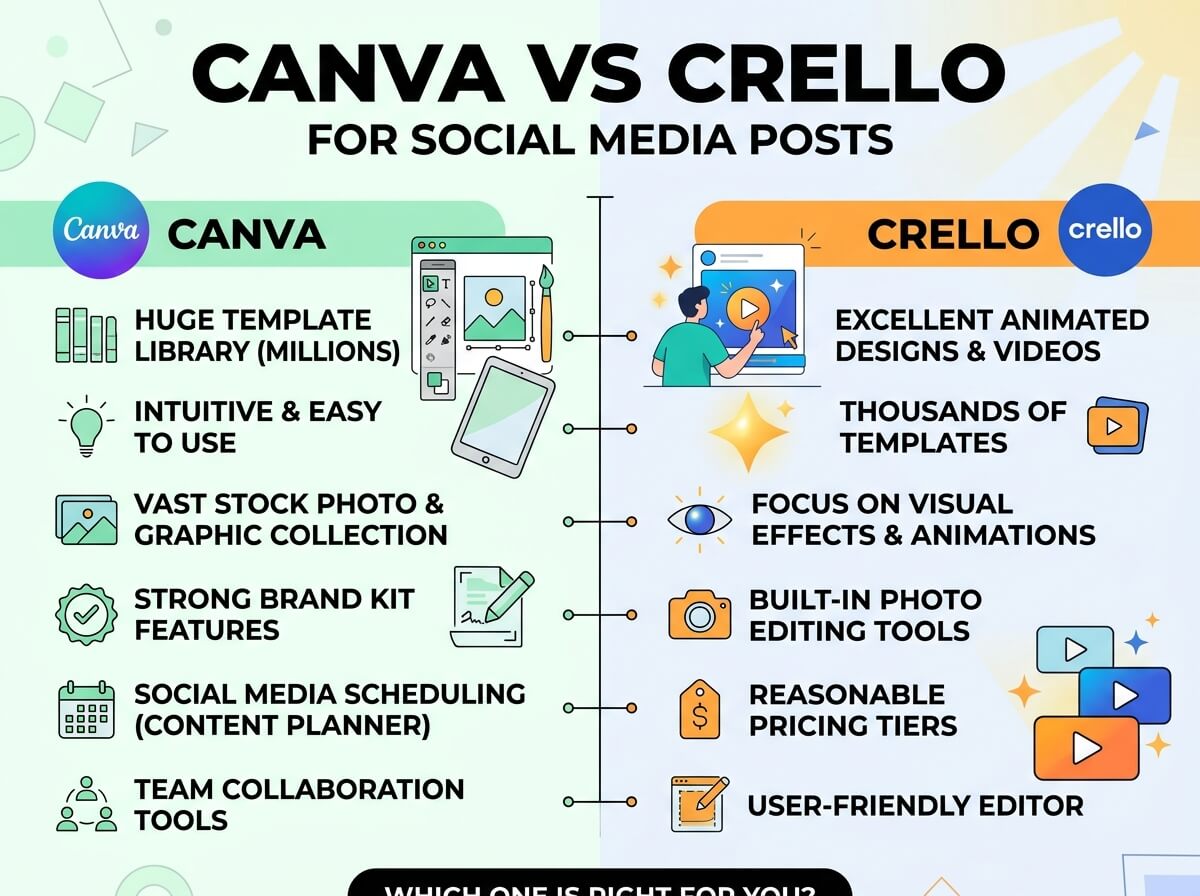
Canva boasts an enormous template library—over 500,000 templates across all categories. For social media specifically, Canva offers pre-sized templates for every major platform: Instagram posts, Stories, Reels, TikTok videos, Pinterest pins, LinkedIn posts, Twitter/X posts, and Facebook covers. This breadth means you rarely need to start from scratch.
The templates follow consistent design trends. Canva stays current with what's popular on social media. Fresh designs drop regularly, so your content doesn't look outdated.
Crello's template library is smaller but still robust. They focus heavily on animated templates, which sets them apart. If you plan to create movement in your designs, Crello's selection gives Canva real competition. Their templates often feel modern and trendy, with built-in animations that immediately add polish.
However, for static social media posts, Canva's sheer volume and variety win. For animated content and video, Crello catches up quickly.
User Interface and Ease of Use
Both platforms prioritize simplicity, but they take slightly different approaches.
Canva's Interface:
Canva's workspace feels intuitive from your first login. The left sidebar holds your tools and elements. The center canvas displays your design. The right panel shows options for the selected element. This layout matches what experienced designers expect, which makes Canva feel familiar even if you've never opened design software before.
Drag-and-drop works smoothly. Uploading images is simple. Adjusting colors, fonts, and positions happens through obvious controls. Canva doesn't overwhelm you with options—instead, it surfaces the controls you need right when you need them.
Crello's Interface:
Crello uses a similar layout but with subtle differences. The workspace feels clean and organized. Element placement works via drag-and-drop, just like Canva. The main difference comes down to menu organization—some users find Crello's menus slightly less intuitive than Canva's.
That said, Crello's animation tools are more accessible than Canva's. If animation is your focus, Crello's interface actually becomes an advantage. The animation controls sit front-and-center, making them easy to discover and adjust.
For absolute beginners, Canva holds a slight edge in intuitiveness. For creators comfortable with tools who want animation, Crello becomes competitive.
Stock Images and Media Assets
Both platforms offer access to stock images, but their approaches differ.
Canva's Media Library:
Canva includes millions of free stock images through partnerships with Unsplash, Pixabay, and Pexels. You can search and insert these images directly into your designs without leaving Canva. The free plan provides access to millions of free images plus thousands of paid premium images.
The Pro subscription unlocks Canva's exclusive photo library—additional premium stock that only subscribers access. This ensures your designs feel fresh and unique.
Crello's Media Library:
Crello also integrates stock images and icons, with a similar freemium approach. They partner with stock image services and provide thousands of free images. Premium images require payment or a paid subscription.
Here's where it gets interesting: Crello integrates YouTube's video library directly. This is huge for creators making social media videos. You can search YouTube, pull footage directly into your design, and use it as background elements or filler content. Canva doesn't offer this integration.
For static image-based social posts, both are comparable. For video-heavy content, Crello's YouTube integration becomes a major advantage.
Customization and Creative Control
This is where differences emerge based on what you want to do.
Canva's Customization:
Canva gives you solid customization without overwhelming you. You can adjust colors, swap fonts, move elements, resize components, and adjust spacing. For 80% of social media creators, this is more than enough.
However, advanced designers sometimes feel constrained. Canva doesn't offer pixel-perfect control or advanced layout tools. You can't create truly unique designs from scratch as easily as you can in Adobe products. That said, this limitation is intentional—Canva targets non-designers, not professionals.
Canva's brand kit feature (on Pro) deserves mention. You can save your brand colors, fonts, and logos. When you create new designs, these elements apply automatically, ensuring consistency across all your social media.
Crello's Customization:
Crello provides similar customization to Canva with arguably more freedom in some areas. You can adjust animations, timing, and transitions in ways Canva makes harder. The animation builder feels more like a true video editor than Canva's animation tools.
For static designs, customization is comparable to Canva. For animated designs, Crello wins.
Collaboration Features
Both platforms understand that many teams work together on social media.
Canva Collaboration:
Canva Teams (part of Pro) enables collaboration. You can invite team members, assign tasks, and set up approval workflows. Multiple people can view and edit designs, though not simultaneously in real-time.
For small teams and content creators working solo, this works. For larger teams needing simultaneous editing, the limitations become apparent.
Crello Collaboration:
Crello also offers team collaboration through their paid plans. You can share designs with team members and manage permissions. Like Canva, it doesn't allow simultaneous real-time editing, but sharing and feedback workflows work well.
Both are adequate for small to medium teams. Neither is built for large enterprise collaborations with dozens of team members.
Pricing: What Does Each Cost?
Understanding pricing is crucial before committing to either platform.
Canva Pricing Structure
Canva Free:
- Access to thousands of templates
- Millions of free images
- Basic editing tools
- 5GB cloud storage
- Watermark on downloads
- Cost: $0/month
Canva Pro:
- All free features, plus:
- 250,000+ premium templates
- Unlimited uploads
- Brand kit (save colors, fonts, logos)
- Remove Canva watermark
- Team collaboration (limited)
- Background remover tool
- 1TB cloud storage
- Cost: $168/year (or $14/month if billed monthly)
Canva Teams:
- Everything in Pro, plus:
- Unlimited team members
- Centralized brand management
- Better team collaboration tools
- Cost: $30/month per brand (billed annually)
Crello Pricing Structure
Crello Free:
- Access to templates
- Basic animations and editing
- Free stock images
- Limited storage
- Cost: $0/month
Crello Plus:
- All free features, plus:
- Premium templates and assets
- Unlimited storage
- Better export quality
- Remove Crello watermark
- Scheduled publishing to social
- Cost: Around $119/year (pricing varies by region)
Crello Teams:
- Everything in Plus, plus:
- Team management
- Shared brand assets
- Cost: Around $25/month per user
Verdict: Both offer similar pricing in the $120-170 range for annual subscriptions. Crello is occasionally cheaper, but Canva's Pro plan includes more premium templates. For teams, both charge per-seat fees that add up quickly.
Specific Social Media Platform Optimization
Different social platforms have different requirements. Let's see how each tool handles the major networks.
Instagram Posts and Stories
Both tools include Instagram-specific templates. Canva edges ahead here with more design variety and fresher templates that match current Instagram trends. Instagram Stories require specific dimensions (1080x1920px), and both platforms handle this automatically with pre-sized templates.
For Instagram Reels (vertical video), Crello's animation and video tools make more sense than Canva's. Crello handles frame-by-frame animation more smoothly, making it easier to create engaging Reels.
TikTok and Short-Form Video
This is where Crello shines. TikTok success depends on movement, quick cuts, and engaging transitions. Crello's animation tools, template library with built-in animations, and video editing capabilities are purpose-built for this.
Canva can create TikTok posts, but the process feels less natural. You're using a static design tool to create video content.
Pinterest and Long-Form Content
Pinterest has specific requirements: pins are tall and narrow (1000x1500px or similar proportions). Both tools offer Pinterest templates.
Canva's larger template library means more Pinterest-specific designs to choose from. You'll find more variety and more options that match current Pinterest trends.
Crello can create pins, but less specialized templates are available specifically for Pinterest.
Facebook and LinkedIn
For professional Facebook pages and LinkedIn content, both work equally well. Canva's brand kit feature becomes valuable here—you can maintain consistent branding across posts.
Crello also supports brand consistency but with fewer enterprise-grade features.
Email Graphics and Web Content
This isn't social media, but it's worth noting: Canva excels at designing graphics for emails, blog headers, and web content. If your social media strategy expands to these channels, Canva is the better all-around tool.
Crello focuses more narrowly on social media and video, making it less useful if you need versatility.
Performance and Speed: Which Loads Faster?
In a world where seconds matter, performance counts.
Canva generally loads quickly and performs smoothly, even when working with large files or complex designs. The web interface is responsive, and design previews update in real-time without lag.
Crello also performs well, though some users report occasional slowdowns when working with animated content. This makes sense—animation tools require more processing power.
For simple static designs, both are equally fast. For heavy animation work, Canva might feel snappier because it's doing less behind the scenes.
Template Design Quality and Trends
This is subjective, but it matters for your social media aesthetics.
Canva's Design Aesthetic:
Canva templates tend toward modern, clean designs. They follow contemporary trends closely. Templates often feature:
- Generous whitespace
- Bold typography
- Trendy color palettes
- Balanced layouts
- Professional polish
This works well for brands wanting to look polished and current. The downside: some templates feel formulaic because designers across the platform use the same templates.
Crello's Design Aesthetic:
Crello templates often feel slightly bolder and more experimental. Many include built-in animations that add movement and life. Templates tend to feature:
- Dynamic compositions
- Animated elements
- Bold color choices
- Movement-ready designs
- Modern sensibilities
For creators wanting to stand out, Crello's bolder approach appeals more. The animation-ready designs encourage you to think beyond static content.
Customer Support and Learning Resources
Both platforms offer support, but thoroughness varies.
Canva:
- Comprehensive help center with hundreds of articles
- Video tutorials covering most features
- Active community forums
- Email support (faster on Pro plans)
- Chat support available to some users
- Extensive written documentation
Crello:
- Help center with common questions
- Video tutorials, though fewer than Canva's
- Community forums exist but are smaller
- Email support
- Less extensive documentation than Canva
Winner: Canva's support ecosystem is significantly larger and more helpful. If you get stuck, Canva's documentation will likely answer your question. Crello's support is adequate but smaller.
Detailed Comparison Table
| Feature | Canva | Crello |
|---|
| Template Library | 500,000+ templates | 50,000+ templates |
| Social Media Templates | Excellent (all platforms) | Good (video-focused) |
| Animation Tools | Basic | Advanced |
| Video Editing | Limited | Good |
| Stock Images | Millions free + premium | Good selection |
| Brand Kit | Yes (Pro) | Limited |
| Real-Time Collaboration | No | No |
| Simultaneous Editing | Limited | Limited |
| Cloud Storage | Free: 5GB, Pro: 1TB | Limited on free, unlimited Pro |
| Watermark | Yes (free), removable | Yes (free), removable |
| Learning Resources | Extensive | Moderate |
| Customer Support | Excellent | Good |
| Export Formats | PNG, PDF, MP4, more | PNG, PDF, MP4 |
| Integration with Social Platforms | Strong scheduling | Basic |
| YouTube Integration | No | Yes |
| Price (Annual) | $168/year | ~$119/year |
| Best For | General creators, versatility | Video and animation creators |
| Ease of Use | Very easy | Very easy |
| Customization | Moderate | Moderate to advanced |
Real-World Scenarios: Which Tool to Pick?
Scenario 1: Small Business Owner Managing Multiple Platforms
You run a local business and post across Instagram, Facebook, and Pinterest. You want consistent branding without spending hours on design.
Pick Canva. The brand kit feature ensures consistency across all platforms. The massive template library means less time searching for the perfect design. Strong export options mean you can repurpose designs across different platforms.
Scenario 2: Content Creator Focused on TikTok and Instagram Reels
You create short-form video content and need animations that pop. Movement and dynamic designs drive your engagement.
Pick Crello. The animation tools and video-focused templates suit your needs. The YouTube integration helps you add video backgrounds quickly. Animation editing is more accessible than Canva's approach.
Scenario 3: Solopreneur Building a Personal Brand
You post regularly on LinkedIn, Twitter, and your blog. You want designs that look professional without looking corporate.
Pick Canva. The template variety and professional polish suit personal branding. The collaboration features aren't necessary, but the design quality is. Export options mean you can use designs beyond social media.
Scenario 4: Design Agency Creating Client Content
You create designs for multiple clients and need to maintain separate brands and workflows.
Pick Canva Teams. The team features and brand kit management make client work easier. More template variety means more options for different client aesthetics. Better support helps when you're handling client issues.
Scenario 5: E-commerce Business Posting Product Images
You sell products and post regularly on Instagram and Pinterest with product images and promotional graphics.
Pick Canva. The background remover tool (Pro feature) helps you work with product images. Pinterest template variety is superior. The brand kit ensures product presentation consistency.
The Verdict: Making Your Final Decision
Both Canva and Crello are legitimate, capable design platforms. Neither is objectively "better"—it depends on your specific needs.
Choose Canva if:
- You want simplicity and ease of use above all else
- You post across multiple platforms (Instagram, Pinterest, Facebook, LinkedIn, Twitter, etc.)
- You're a beginner with zero design experience
- You want the largest template library
- You need versatility (beyond social media into email, web, presentations)
- You prefer extensive learning resources and support
- You want professional polish and current design trends
- You plan to build a personal brand or team brand
Choose Crello if:
- Animation and video are central to your strategy
- You create TikTok and Instagram Reels content regularly
- You want bolder, more experimental design aesthetics
- You're willing to pay slightly less (sometimes)
- You value YouTube integration for video backgrounds
- You're comfortable with a slightly smaller template library
- You want tools that encourage movement and dynamic design
Beyond the Comparison: Hybrid Strategies
Here's a secret: many creators use both platforms. You might create most content in Canva, then export to Crello when you need animation. Or vice versa. Both tools export standard formats (PNG, PDF, MP4), so using both is entirely feasible.
The best approach depends on your workflow. If 80% of your content is static and 20% includes animation, Canva handles the bulk and Crello handles the special projects. This hybrid approach costs more but might maximize your content quality.
Getting Started: Your Next Steps
Ready to pick one and start creating?
Here's what to do:
-
Sign up for the free versions of both platforms. You're not committing yet—just exploring.
-
Create one social media post in each tool. Use the same content and platform, so you can compare directly.
-
Pay attention to your experience. Which interface felt more natural? Which template library had better options? Which final design did you prefer?
-
Try the scheduling features if you need to post across platforms. See which feels like a better fit for your workflow.
-
Make your decision based on how you actually work, not on abstract feature lists.
The "best" tool is the one you'll use consistently. If Crello's interface feels right and you love the animation tools, that's your tool—even if Canva technically has more templates. Conversely, if Canva's simplicity means you'll actually create content instead of procrastinating, that's your winning platform.
Closing Thoughts: The Real Secret to Social Media Success
Here's what matters more than choosing between Canva and Crello: actually creating content consistently. The best design tool in the world won't help if you never use it.
Both platforms lower the barrier to professional-looking designs. Both give you access to resources that would cost thousands of dollars through traditional design agencies. Both let you compete visually with brands that have entire design teams.
Your choice between them should come down to workflow efficiency and which tool you'll actually enjoy using. Pick the one that makes creating content feel easy, not like a chore. When design feels frictionless, you'll create more. When you create more, your social media grows.
That's the real competitive advantage—not choosing the "perfect" tool, but choosing the one that fits how you actually work and using it consistently.
So start with a free account. Create something. See how it feels. Then decide. That's the best approach.
Additional Resources
Design Inspiration and Trends:
Social Media Strategy:
Related Tools Worth Exploring:
Both Canva and Crello continue to update their features regularly. Check back periodically for the latest capabilities, and don't hesitate to explore your chosen platform's newest tools. The design landscape evolves quickly, and both teams actively improve their products.
Final tip: Whichever tool you choose, invest time in learning the features beyond basic template customization. Both platforms offer far more than most creators ever discover. Templates are the starting point—true design power comes from understanding customization, brand consistency, and strategic asset management. Spend a week learning your chosen tool deeply, and you'll be amazed at what becomes possible.