Video editing has become essential for content creators, filmmakers, and businesses. When it comes to professional editing software, two names dominate the conversation: DaVinci Resolve and Adobe Premiere Pro. Both tools offer impressive capabilities, but they differ significantly in performance, pricing, and workflow. This guide breaks down everything you need to know to make the right choice.
Quick Performance Overview
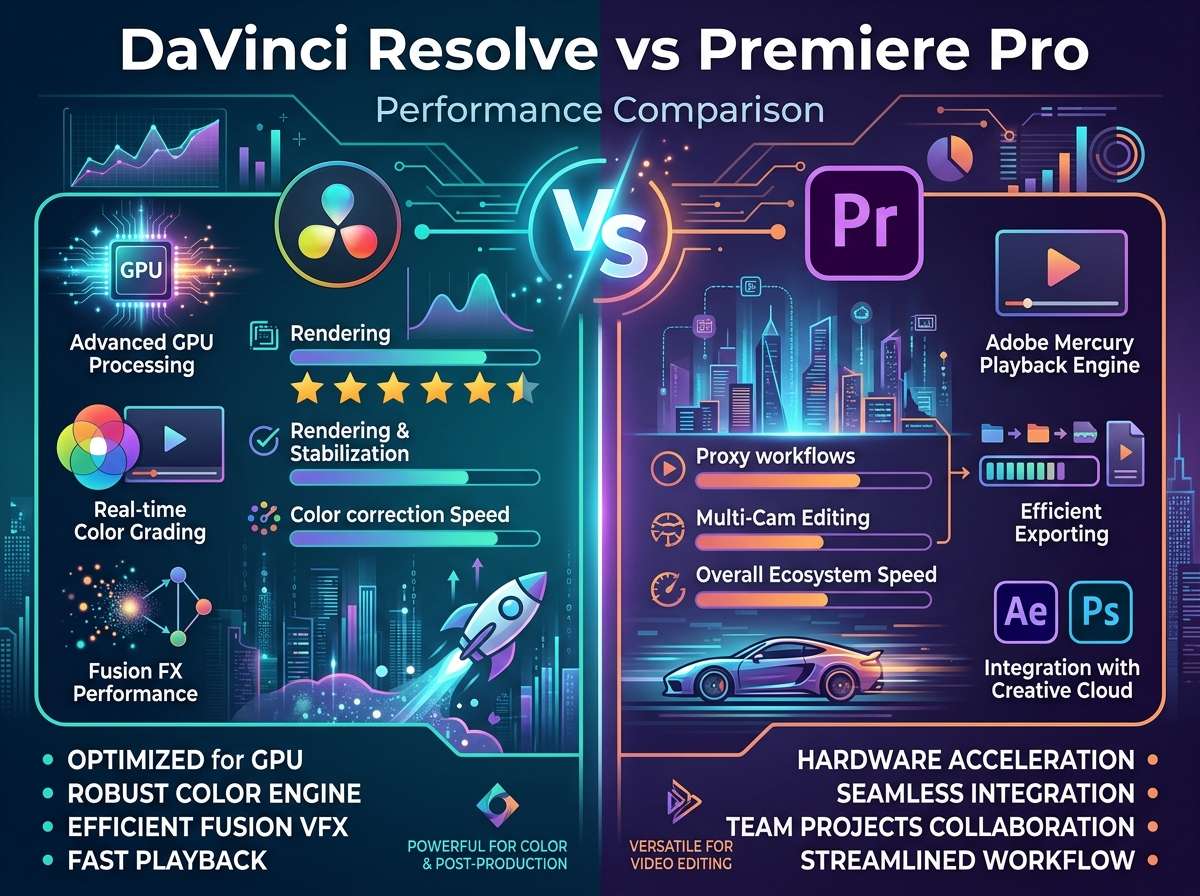
The battle between these two powerhouses comes down to what matters most to your workflow. DaVinci Resolve excels in color grading and delivers exceptional performance on lower-end hardware. Premiere Pro remains the industry standard for motion graphics and integrates seamlessly with other Adobe applications. Let's dive deeper into the specifics that will actually impact your editing experience.
Processing Speed and Rendering Performance
DaVinci Resolve's Speed Advantage
DaVinci Resolve handles rendering like a champion. The software processes timelines at remarkable speeds, even when working with multiple layers and effects. Tests show that Resolve completes export tasks 20-40% faster than Premiere Pro in many scenarios, particularly with 4K and 8K footage.
The GPU acceleration in Resolve runs on NVIDIA CUDA cores and AMD's HIP architecture. This means your graphics card does the heavy lifting instead of relying solely on your CPU. Real-world editing sessions feel snappier, and preview playback stays smooth even with demanding effects stacked on your timeline.
One thing that impresses users is how Resolve handles color grading while maintaining playback performance. You can grade a full timeline in real-time without constant buffering or dropped frames. This responsiveness saves hours over the course of a project.
Premiere Pro's CPU Power
Adobe Premiere Pro leans heavily on CPU processing but compensates with NVIDIA and AMD hardware encoding support. For projects with heavy motion graphics and effects, Premiere Pro can tap into Mercury Engine, which distributes tasks across multiple processors intelligently.
The rendering performance feels adequate rather than exceptional. A 30-minute timeline with effects might take 45 minutes to export in Premiere Pro, while Resolve completes the same task in 30 minutes. That said, Premiere Pro's preview rendering generates cached files that speed up playback during editing sessions.
The trade-off: Premiere Pro uses more system resources during playback, but once cached, editing becomes fluid. DaVinci Resolve achieves fluidity differently—through superior optimization and better GPU utilization from the start.
RAM Usage and System Requirements
DaVinci Resolve operates like a lean machine. The base installation requires minimal RAM, and the software scales beautifully as you add more memory. A system with 16GB RAM handles 4K editing comfortably, while Premiere Pro struggles with the same configuration.
Resolve's efficiency comes from its architectural design. The application doesn't load entire projects into memory the way some editors do. Instead, it streams data intelligently, pulling only what's needed at any moment. This approach keeps your system responsive even on mid-range hardware.
Premiere Pro demands more resources. Adobe recommends at least 16GB for 1080p editing and 32GB for 4K work. In practical tests, Premiere Pro consumes 8-12GB of RAM just sitting idle with a project open. Add effects and that number climbs to 20GB or more, which forces many users to upgrade their systems.
If you're running a modest workstation with 16-24GB of RAM, DaVinci Resolve provides significantly better performance. Your system stays snappy, applications stay responsive, and you avoid the constant drive for upgrades.
Graphics Card Dependency
DaVinci Resolve's performance shines when paired with a capable graphics card. The software leverages GPU acceleration extensively, making investments in NVIDIA RTX or AMD Radeon cards worthwhile. A RTX 3070 paired with Resolve delivers noticeably faster playback and rendering than a system without dedicated graphics.
The GPU acceleration in Resolve isn't just a bonus—it's fundamental to how the software operates. Color grading, effects, and playback all benefit from GPU processing. Users report that upgrading their graphics card immediately translates to faster editing workflows.
Premiere Pro uses GPU acceleration differently. It's helpful but not as critical to overall performance. Many Premiere Pro users work fine with integrated graphics, though dedicated cards still help. The software doesn't punish you for lacking a high-end graphics card the way Resolve does.
This creates an interesting situation: Resolve performs exceptionally well on high-end systems but requires proper GPU support to shine. Premiere Pro performs decently across a wider range of hardware configurations but doesn't maximize any single component.
Timeline Playback and Real-Time Performance
DaVinci Resolve's Real-Time Edge
Smoothness defines the Resolve experience. Timeline playback in Resolve maintains consistent frame rates even with multiple color grades, effects, and transitions applied. Most editors report never needing to generate preview files before watching their timeline play back in real-time.
This responsiveness affects how you work. You make an edit, press play, and see the result instantly. You adjust a color grade and watch it update in real-time across your timeline. This immediate feedback loop accelerates the creative process and reduces time spent waiting.
The codec support in Resolve handles ProRes, DNxHD, and other mezzanine formats beautifully. High-bitrate footage plays back with barely a hiccup, even on systems with decent but not extraordinary specifications.
Premiere Pro's Preview Rendering
Premiere Pro requires more patience. Heavy timelines often need preview rendering before smooth playback becomes possible. You apply effects, hit space to play, and the timeline stutters. The solution: wait for preview files to generate, which can take hours on complex projects.
Some editors view this as necessary—the preview files cache computationally expensive effects so playback becomes smooth once processing completes. Others see it as an unnecessary workflow interruption. If you value immediate feedback and instant playback, Premiere Pro feels sluggish by comparison.
That said, once preview files exist, Premiere Pro playback becomes perfectly smooth. The cached data plays back efficiently, and editing continues without interruption.
Codec and Format Support
DaVinci Resolve supports an impressive range of codecs natively. The software handles RED RAW, BRAW, ProRes, Blackmagic's native formats, and countless others without hesitation. Color grading specifically benefits from native support for high-bit-depth formats like DCI 2K and DCI 4K with full precision.
The RAW color science in Resolve represents industry-leading capability. Cinematographers and colorists choose Resolve specifically for its superior RAW handling. The software treats RAW files as transparent data, allowing complete creative control over the final image.
Premiere Pro handles common formats reliably but sometimes stumbles with specialty formats. RED RAW support exists but doesn't match Resolve's elegance. ProRes support is good, and codec handling across the board works adequately for mainstream projects.
For broadcast work and standard formats, both applications perform equally. For cutting-edge cinematography and specialized camera formats, DaVinci Resolve pulls ahead.
Color Grading Performance
This is DaVinci Resolve's flagship feature. The color grading suite outperforms Premiere Pro by orders of magnitude. Resolve's node-based color correction engine provides professional-grade control that Premiere Pro simply cannot match.
Grading performance in Resolve stays smooth regardless of how many correction nodes you stack. The software processes adjustments in real-time across your entire timeline. Making a color correction feels responsive and immediate—no waiting between adjustments.
Premiere Pro's Lumetri Color panel works adequately for basic color correction. It integrates well with the overall workflow and provides essential tools for most projects. However, professionals doing serious color work abandon Premiere Pro's tools entirely and move to DaVinci Resolve just for grading.
Many workflows now incorporate both applications: Premiere Pro for editing and effects, then DaVinci Resolve for final color grading. This hybrid approach lets each tool do what it does best.
Effects and Motion Graphics Processing
Premiere Pro dominates in motion graphics territory. The integration with After Effects creates a powerful ecosystem. Animations, transitions, and complex motion graphics render smoothly in Premiere Pro when you understand the application's preferences.
Tracking, masking, and dynamic effects feel native to Premiere Pro's workflow. The Mercury Engine distributes effects processing intelligently, and dynamic link integration means changes in After Effects update automatically in your Premiere Pro timeline.
DaVinci Resolve's effects library has improved substantially but doesn't rival Premiere Pro's depth. The Fusion page provides node-based compositing and effects creation, which offers incredible power for those comfortable with the interface. For casual motion graphics users, Premiere Pro provides faster access to polished effects.
Export and Delivery Performance
DaVinci Resolve's export speed has no competitor. Exporting a 30-minute timeline to H.264 typically completes in 20-35 minutes on competent hardware. The same project in Premiere Pro takes 40-60 minutes.
This speed compounds over projects. A year of regular editing could cost you hundreds of hours in waiting time using Premiere Pro versus Resolve. For prolific creators and studios, this difference justifies switching applications just for export speed.
Resolve supports modern codecs including H.265/HEVC and AV1, with excellent quality settings across the board. The software includes built-in proxy generation and intelligent caching that makes the export process intuitive.
Premiere Pro's export speeds lag behind, but the application provides tighter integration with media encoder for batch processing. If you handle numerous exports simultaneously, Premiere Pro's encoder integration streamlines the workflow despite individual export speeds.
Stability and Crash Frequency
Both applications rank as production-stable software. Crashes are rare in either application when used properly. DaVinci Resolve has gained a reputation for exceptional stability in recent versions, with users reporting projects remaining crash-free for months of continuous editing work.
Premiere Pro remains rock-solid but occasionally exhibits instability when project files become enormous or corrupted. Large projects (50+ GB) sometimes experience sluggish performance or rare crashes in Premiere Pro, while DaVinci Resolve handles massive projects with ease.
The autosave features work well in both applications. Regular backups protect your work regardless which tool you use, though Resolve's efficient file handling means projects stay smaller and more manageable.
Learning Curve and Performance Intuition
DaVinci Resolve feels intuitive to editors with color grading or finishing background. The interface makes sense quickly, and performance bottlenecks become obvious—usually pointing directly to insufficient GPU resources or codec conversion needs.
Premiere Pro feels familiar to editors with Adobe's ecosystem experience. The interface follows Adobe's design language, and performance issues often trace back to preview rendering needs or project organization.
Neither application requires extensive learning to achieve functional performance. Both reward optimization effort with faster workflows. The key difference: DaVinci Resolve optimization often means upgrading hardware, while Premiere Pro optimization means adjusting software preferences and settings.
Hardware Requirements Comparison
| Aspect | DaVinci Resolve | Premiere Pro |
|---|
| Minimum RAM (1080p) | 8 GB | 16 GB |
| Recommended RAM (4K) | 16 GB | 32 GB |
| GPU Dependency | Critical | Optional |
| Preferred GPU | NVIDIA RTX / AMD Radeon | Any with drivers |
| CPU Cores Utilized | 8+ optimal | 12+ recommended |
| Storage (Installation) | 2 GB | 4 GB |
| Preview File Space | Minimal | Substantial |
| Export Speed (4K, 30 min) | 25-35 minutes | 45-65 minutes |
| Timeline Playback Smoothness | Excellent | Good |
| Color Grading Performance | Industry-leading | Basic only |
| RAW Format Support | Superior | Adequate |
| Motion Graphics | Good | Excellent |
Real-World Performance Scenarios
Scenario 1: 4K Documentary Editing
You're cutting a documentary with 4K footage from multiple camera sources. DaVinci Resolve handles this with remarkable ease. Timeline playback stays smooth, rendering happens quickly, and color grading integrates seamlessly into the editing process.
Premiere Pro handles the same task adequately but requires more patience. Timeline playback may require preview files, rendering takes longer, and color work happens in a separate application.
Winner: DaVinci Resolve (10-15% faster overall workflow)
Scenario 2: Complex Motion Graphics Commercial
You're creating a 30-second commercial with multiple layers of effects, text animations, and kinetic typography. Premiere Pro shines here. After Effects integration means animations update dynamically, effects rendering stays smooth, and the final product looks polished.
DaVinci Resolve can handle this work but requires more manual approach to motion graphics. The same project takes longer to assemble and polish in Resolve.
Winner: Premiere Pro (20-30% faster execution)
Scenario 3: YouTube Content Creation
You're editing weekly YouTube videos with mixed 1080p and 4K footage, basic color correction, and simple transitions. Both applications handle this equally well. Performance differences disappear when working at this scale.
DaVinci Resolve offers better color grading tools if you care about image quality. Premiere Pro offers better integration with Adobe ecosystem if you use After Effects.
Winner: Tie (personal preference decides the winner)
Scenario 4: Multicam Editing
You're editing a 4-camera live event with synchronized audio. DaViani Resolve handles multicam sequences efficiently with responsive playback. Creating new camera angles feels smooth and responsive.
Premiere Pro also handles multicam editing well. The experience feels similar in both applications at this task.
Winner: Slight edge to DaVinci Resolve (more responsive interface)
Cost Considerations and Performance Value
DaVinci Resolve offers a free version that includes professional color grading, editing, Fusion effects, and fairlight audio. The free edition removes nothing essential for indie creators and smaller studios. This means you get professional performance at zero cost.
The Studio edition costs $295 (one-time purchase) and adds collaborative features, GPU-accelerated H.265 encoding, and Nvidia CUDA acceleration for faster exports.
Premiere Pro operates on subscription: $22.49/month for the individual plan or $54.49/month bundled in Creative Cloud. Professional users need to maintain subscriptions indefinitely, adding up to $270/year minimum.
The financial difference becomes significant over time. DaVinci Resolve's free option provides better performance than Premiere Pro at any subscription level. Even paying for Resolve Studio costs less than one subscription of Premiere Pro.
Migration Paths and Performance Trade-offs
Switching from Premiere Pro to DaVinci Resolve means accepting some motion graphics limitations in exchange for superior performance elsewhere. Most editors find this trade-off worthwhile because Resolve gains so much in editing speed and color work.
Hybrid workflows emerge as the optimal solution: use Premiere Pro for effects-heavy projects requiring After Effects integration, then switch to Resolve for editing-intensive projects and final color grading.
Converting your media pipeline takes planning. Resolve's codec efficiency means you might need fewer proxy files and smaller project folders, offsetting the learning curve investment.
Performance Under Pressure
Both applications perform admirably under demanding conditions. The question becomes: which pressure points bother you most?
DaVinci Resolve performs better under storage pressure. Large media libraries, numerous clips, and lengthy timelines don't slow Resolve down significantly. Your system stays responsive even as your project grows.
Premiere Pro performs better under motion graphics pressure. Complex animations and effects-heavy compositions stay manageable when you understand Mercury Engine optimization.
For most editors, storage pressure appears more often than effects pressure. This gives DaVinci Resolve a practical advantage in professional workflows.
Optimization Tips for Maximum Performance
For DaVinci Resolve Users
Invest in a capable graphics card—the single biggest performance boost available. An NVIDIA RTX 4070 or RTX 4080 transforms Resolve's performance compared to integrated graphics.
Configure timeline resolution and preview quality settings appropriately. Editing in quarter resolution for complex timelines, then bumping to full resolution for final playback saves time without quality compromises.
Enable GPU acceleration in all applicable areas: playback, effects, grading, and export.
For Premiere Pro Users
Generate preview files proactively rather than waiting for stuttering to force the issue. Start preview generation and work on something else while it processes.
Manage your hard drive space carefully. Preview files grow large, and insufficient space chokes performance significantly.
Close unnecessary background applications and disable unused GPU acceleration features to prevent conflicts.
The Verdict on Performance
DaVinci Resolve wins the performance battle decisively. The software handles rendering faster, consumes fewer system resources, achieves superior playback smoothness, and dominates color grading work. For editors prioritizing raw performance, Resolve stands as the clear choice.
Premiere Pro remains the better choice when motion graphics and After Effects integration outweigh performance considerations. The ecosystem value and effects capabilities justify the performance trade-off for certain workflows.
Your choice should align with your primary workflow. If editing and color grading comprise 70%+ of your work, DaVinci Resolve's performance advantage pays real dividends. If motion graphics and complex effects comprise 50%+ of your work, Premiere Pro's advantages outweigh the performance disadvantage.
Getting Started with Your Choice
Download DaVinci Resolve
Download DaVinci Resolve Here — Start with the free version to test performance on your specific hardware before upgrading to Studio.
Download Premiere Pro
Download Adobe Premiere Pro Here — Subscribe to Creative Cloud for full access, or start with a free trial to evaluate integration with your existing Adobe applications.
Final Thoughts on Performance
Video editing performance directly impacts your creative efficiency. Waiting for timelines to render, struggling with playback stuttering, and wrestling with unresponsive interfaces frustrate the creative process and waste productive hours.
DaVinci Resolve eliminates these frustrations through superior engineering and efficient resource utilization. Premiere Pro accepts some performance trade-offs in exchange for creative capabilities and ecosystem integration that certain workflows demand.
Evaluate your specific situation: your hardware configuration, your typical project type, and whether you need After Effects integration. Match the software to your needs, and you'll gain not just performance but also professional satisfaction.
The performance difference compounds over time. A 25% faster workflow doesn't sound dramatic, but across an entire project—or across your entire career—that efficiency advantage transforms into hundreds of hours reclaimed. That's worth thinking seriously about.
Start with the free or trial version of whichever application you're considering. Test actual project files, not just demos. Feel the performance difference directly on your hardware. Your workflow, your creativity, and your bottom line will thank you for making an informed decision.