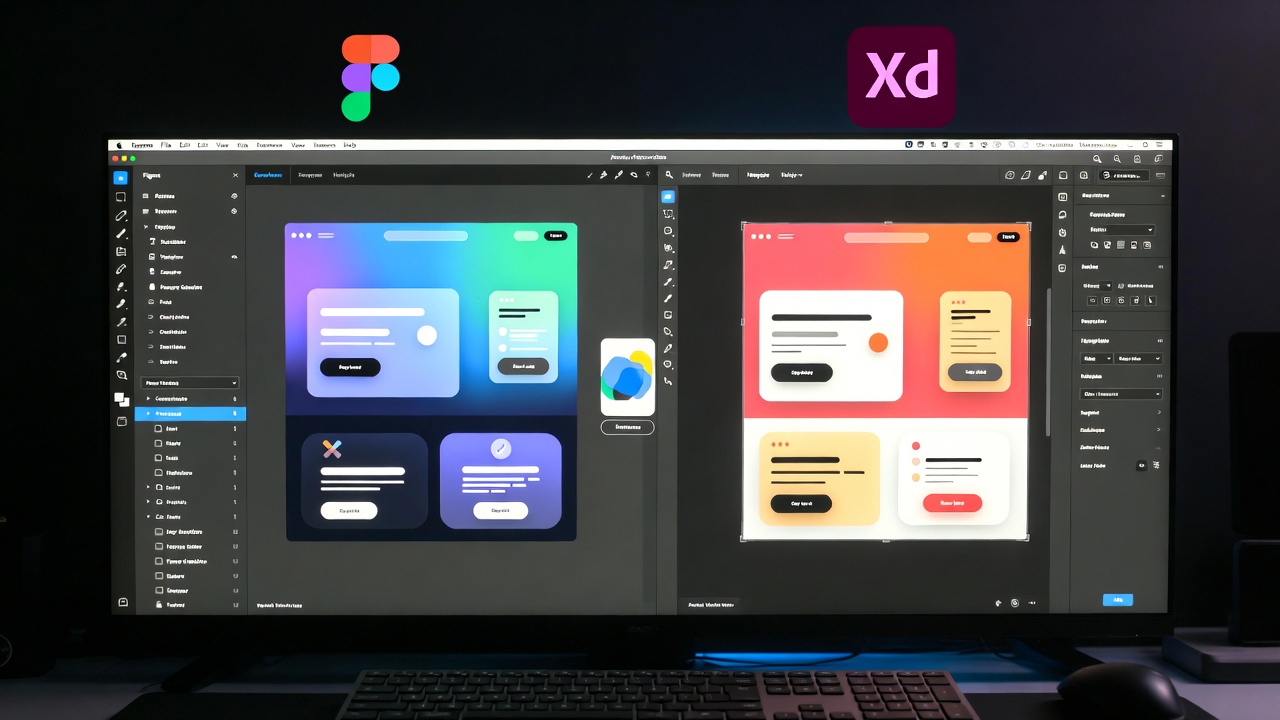
You're staring at your screen, ready to start your next UI design project. Two tools sit in your bookmarks: Figma and Adobe XD. Both promise to make your design workflow smoother, but which one deserves your time and money?
This question haunts designers daily. I've spent countless hours working with both platforms, creating everything from simple mobile apps to complex web applications. Today, I'll break down everything you need to know about these two design giants.
The Real Deal: Why This Comparison Matters
The design tool you pick shapes how you work every single day. It affects your speed, your collaboration with teammates, and even the quality of your final product. Get it wrong, and you'll waste hours fighting with your software instead of creating beautiful interfaces.
Both Figma and Adobe XD have passionate fans. Designers argue about them on Twitter, in Slack channels, and at design meetups. But most comparisons miss the practical details that actually matter when you're working on real projects.
I'm here to change that. This guide digs deep into both tools, comparing them feature by feature, so you can make a smart choice based on your actual needs.
Try Figma Free
Try Adobe XD Free
A Quick Look at Both Platforms
What is Figma?
Figma launched in 2016 and completely changed the game for UI design tools. The platform runs entirely in your web browser, which seemed crazy at first. No downloads, no installations---just open a tab and start designing.
The company built Figma around one core idea: design is better when people work together. Teams can collaborate in real-time, watching each other's cursors move across the canvas. Think Google Docs, but for design work.
In 2022, Adobe announced plans to acquire Figma for $20 billion. That deal fell through in 2023, and Figma continues operating as an independent company.
What is Adobe XD?
Adobe released XD (Experience Design) in 2016 to compete in the modern UI design space. The software company saw designers moving away from Photoshop for interface work and needed a dedicated tool.
XD belongs to Adobe's Creative Cloud suite. If you already use Photoshop, Illustrator, or After Effects, XD fits right into that ecosystem. The desktop app runs on both Mac and Windows.
Adobe built XD specifically for designing and prototyping user experiences. The tool focuses on speed and simplicity, trying to remove the complexity that made older Adobe products intimidating.
Interface and Getting Started
First Impressions with Figma
When you open Figma for the first time, the clean interface feels welcoming. The toolbar sits at the top, tools line up on the left, and your properties panel lives on the right. Everything makes sense within minutes.
The browser-based nature means you can work from any computer. I've edited designs on my work laptop, my home desktop, and even my friend's computer when I needed to make a quick change. Your files live in the cloud automatically.
The file organization uses a simple structure: teams, projects, and files. You can see who else is viewing a file, and you can watch their cursor moving in real-time as they work.
First Impressions with Adobe XD
XD greets you with a welcome screen showing recent files and templates. The interface feels familiar if you've used other Adobe products. The dark theme looks professional and keeps the focus on your design work.
You need to download and install the application, which takes up space on your hard drive. But the app runs smoothly once installed, and many designers prefer desktop apps over browser-based tools.
The layout mirrors other Adobe products: toolbar on the left, properties on the right, artboards in the center. If you know Illustrator, you'll feel at home immediately.
Performance and Speed
How Figma Handles Large Projects
Running in a browser might sound slow, but Figma surprises people with its performance. The team built a custom rendering engine that handles complex designs smoothly.
I've worked on files with hundreds of artboards and thousands of components. Figma handles them without breaking a sweat. The zoom is instant, and panning feels smooth even on older laptops.
Large files do take longer to load initially since they download through your internet connection. Once loaded, though, everything responds quickly. The performance matches native desktop apps in most situations.
Auto-save runs constantly in the background. You never hit "save" manually---Figma handles it automatically. This has saved my work more times than I can count when my browser crashed or my laptop died.
How Adobe XD Handles Large Projects
Being a native desktop app, XD accesses your computer's full power. The software runs fast and responds instantly to your actions. Zooming and panning feel incredibly smooth.
Files load quickly since they sit on your local drive. You don't wait for downloads before you can start working. This makes a real difference when you need to jump into a project fast.
XD can struggle with extremely large files containing hundreds of artboards. The app slows down, and scrolling gets laggy. You'll want to split massive projects into smaller files to keep things running smoothly.
Save times stay short for most projects. XD saves to your local drive, so you don't depend on internet speed. But this also means you need to remember to save regularly---there's no automatic cloud save happening constantly.
Design Tools and Features
Vector Editing Capabilities
Both tools handle vector graphics well, but they approach editing differently.
Figma's pen tool works intuitively. You can create complex shapes, adjust curves with precision, and combine shapes using boolean operations. The vector networks feature lets you connect lines in ways traditional vector tools can't handle.
XD's vector tools feel more traditional, similar to Illustrator. If you've used Adobe's design tools before, you'll work faster in XD right away. The boolean operations work well for combining shapes into complex icons.
Both tools let you edit vectors directly on the canvas without switching modes. You can double-click a shape to see its points and adjust them immediately.
Typography and Text Handling
Figma treats text as a first-class citizen. The text properties panel gives you control over line height, letter spacing, and paragraph spacing. You can create text styles that update across your entire design system.
One neat trick: Figma lets you resize text boxes freely while keeping the text size fixed, or you can resize the box and the text together. This flexibility speeds up layout work.
XD offers solid text controls too. The character spacing and line spacing controls work well. You can create character styles that apply across multiple text objects.
Both tools support Google Fonts and system fonts. You can use any font installed on your computer, and your teammates will see the same fonts if they have them installed too.
Component and Symbol Systems
This is where things get interesting. Both tools use reusable components, but they work quite differently.
Figma's components are incredibly powerful. You can create a master component, then make instances of it throughout your design. Change the master, and all instances update automatically. But here's the cool part: you can override properties in individual instances while keeping them linked to the master.
Component variants let you group related components together. You can create a button component with variants for primary, secondary, disabled states, and different sizes. This keeps your components organized and easy to use.
XD calls components "components" too (they used to be called "symbols"). The system works similarly to Figma---create a master, use instances, and changes flow through to all instances.
XD's components feel simpler than Figma's. This can be good or bad depending on your needs. Simple projects benefit from the straightforward approach, while complex design systems need Figma's advanced features.
Auto Layout and Responsive Design
Figma's Auto Layout feature changed the game for responsive design. You can make frames that automatically adjust their size based on their content. Add a new button to a button group, and the group expands to fit it.
This works incredibly well for designing components that need to adapt. Create a card that grows when you add more text, or a navigation bar that adjusts when you add menu items. Auto Layout handles the spacing and sizing automatically.
XD offers responsive resize and padding controls. You can set how elements resize when their container changes size. The padding feature spaces elements automatically, similar to Figma's Auto Layout but less powerful.
For truly responsive designs that adapt across screen sizes, Figma's Auto Layout provides more control and flexibility.
Prototyping and Interactions
Building Prototypes in Figma
Figma lets you create interactive prototypes without leaving the design tool. Click the Prototype tab, then draw connections between artboards to create flows.
You can set triggers (on click, while hovering, after delay), actions (navigate to, open overlay, scroll to), and animations (instant, dissolve, move in). The system covers most common interaction patterns.
Smart Animate deserves special mention. It automatically animates between two artboards if they contain similar elements. Create a button in one state, change its color in another state, and Figma animates the color transition. It feels like magic.
Interactive components take prototyping further. You can build fully functional components with multiple states and interactions, all contained within the component itself. Build a dropdown menu once, and use it throughout your prototype.
Building Prototypes in Adobe XD
XD built its reputation partly on prototyping capabilities. The prototyping mode works similarly to Figma: connect artboards, set triggers and actions, create transitions.
XD's auto-animate feature matches Figma's Smart Animate. It creates smooth transitions between artboards automatically, animating position, size, rotation, and other properties.
Voice prototyping sets XD apart. You can create prototypes that respond to voice commands, which is perfect for designing voice interfaces or testing voice-activated features.
The 3D transforms feature lets you create depth and perspective effects. You can rotate elements in 3D space, creating more immersive and dynamic prototypes.
Preview and Testing
Figma lets you preview prototypes right in the browser. Share a link with stakeholders, and they can click through your prototype immediately. No app download required.
The Figma Mirror app lets you preview designs on your phone in real-time. Changes you make on your computer appear instantly on your phone. This makes mobile design testing incredibly fast.
XD provides desktop preview and device preview through the XD app on your phone. The preview updates in real-time as you make changes, just like Figma's mirror app.
XD's integration with Adobe's ecosystem means you can export animations to After Effects for more complex motion design work.
Collaboration Features
Real-Time Collaboration in Figma
This is Figma's superpower. Multiple designers can work in the same file simultaneously. You see their cursors moving, their selections highlighting, and their changes appearing instantly.
The observation mode lets stakeholders follow along as you design. They see your cursor moving and can watch you work in real-time. This beats screen sharing for quick design reviews.
Comments work brilliantly. Click anywhere on the canvas, leave a comment, and tag teammates. The comment stays pinned to that exact spot. Resolve comments once you've addressed them, keeping discussions organized.
Version history saves every change automatically. You can jump back to any previous version, see who made changes, and restore old versions if needed. This acts like Git for designers.
Collaboration in Adobe XD
XD added collaboration features to compete with Figma. You can share documents for review, and multiple people can leave comments on your designs.
Co-editing arrived in XD, but it works differently than Figma. When someone else is editing a file, you'll see a notification. You can open it in read-only mode, or wait for them to finish.
The commenting system works well. Reviewers can click on designs and leave feedback. You'll get notifications about new comments and can reply directly.
Shared cloud documents keep everyone working from the same file. Changes sync through Adobe's servers, though not quite as instantly as Figma's real-time sync.
Design Systems and Libraries
Figma's team libraries are phenomenal for design systems. Publish components, styles, and variables to a team library. Everyone on your team can use these shared assets in their designs.
When you update a component in the library, Figma notifies everyone using it. They can review changes and update their instances with a single click. This keeps design systems consistent across hundreds of files.
Styles in Figma cover colors, text, effects, and layout grids. Create these once, share them through team libraries, and maintain visual consistency across all your designs.
XD's Creative Cloud Libraries work similarly. Save colors, character styles, and components to libraries. Share these libraries with your team for consistent design work.
The Adobe ecosystem provides an advantage here. You can share assets between XD, Photoshop, and Illustrator through Creative Cloud Libraries. This cross-application workflow helps teams using multiple Adobe tools.
Developer Handoff
Figma's Dev Mode
Figma transformed developer handoff with Dev Mode. Developers can inspect designs, grab code snippets, and download assets without bothering designers.
The inspect panel shows CSS code for selected elements. Developers see spacing, colors, fonts, and effects translated into code. This cuts down on back-and-forth questions.
You can mark frames as ready for development, add status labels, and attach links to related files. This keeps everyone aligned on what's ready to build.
Plugins extend developer handoff even further. Tools like Anima export responsive code, while others connect directly to development tools and platforms.
Adobe XD's Developer Handoff
XD's design specs mode serves developers well. They can view measurements, colors, fonts, and export assets. The interface clearly shows distances between elements and property values.
The specs update automatically when you make changes to the design. Developers always see the latest version without needing new handoff links.
XD generates CSS code snippets for selected elements. Developers can copy and paste these directly into their projects, speeding up implementation.
Integrations with development tools like Zeplin, Avocode, and Sympli provide extended developer handoff capabilities for teams needing more features.
Plugins and Extensions
The Figma Plugin Ecosystem
Figma's plugin community exploded after the platform opened up its API. Thousands of plugins solve nearly every design challenge imaginable.
Popular plugins like Unsplash bring stock photos directly into your designs. Content Reel generates realistic placeholder content. Stark checks color contrast for accessibility. The variety is incredible.
Creating plugins yourself is possible if you know JavaScript. The plugin API documentation helps developers build custom tools for specific workflows.
Community plugins stay updated and improve constantly. The competitive ecosystem means better tools emerge regularly, and poorly maintained plugins get replaced by superior alternatives.
The Adobe XD Plugin Ecosystem
XD's plugin library offers solid options, though it's smaller than Figma's. You'll find plugins for icons, illustrations, data population, and design system management.
Adobe's own plugins integrate XD with other Creative Cloud apps. You can import Photoshop layers, use Illustrator symbols, and export animations to After Effects.
The UI Faces plugin populates designs with avatar images. Icons 4 Design brings thousands of icons. Stark for XD handles accessibility checking. The essentials exist, even if selection is more limited.
Building XD plugins requires knowledge of JavaScript and the XD API. The process resembles Figma plugin development, and Adobe provides documentation and examples.
Pricing and Plans
Figma Pricing Structure
Figma offers a generous free plan perfect for individual designers and small teams. You get unlimited personal files and up to 3 projects and files on the team plan.
The Professional plan costs $12 per editor per month (billed annually). This unlocks unlimited projects, advanced version history, team libraries, and private projects.
The Organization plan runs $45 per editor per month. Large teams get org-wide libraries, centralized file management, design system analytics, and advanced admin controls.
You only pay for editors---people who create and edit files. Viewers and commenters are free, unlimited. This makes sharing with stakeholders and developers affordable.
View Figma Pricing
Adobe XD Pricing Structure
XD is included with Creative Cloud All Apps subscription at $59.99 per month. You also get Photoshop, Illustrator, After Effects, and 20+ other apps.
The standalone XD plan costs $9.99 per month. This gets you XD plus 100GB of cloud storage for your design files.
A free starter plan exists with limited features. You can create one shared document and one editable document at a time. This works for trying out XD but feels restrictive for real work.
Student and teacher discounts drop Creative Cloud All Apps to $19.99 per month---an incredible deal if you qualify.
View Adobe XD Pricing
Value for Money
Figma's pricing makes more sense for teams focused purely on UI design. You pay only for what you need, and unlimited viewers/commenters keep costs predictable.
XD delivers better value if you already use Adobe Creative Cloud. The integration with Photoshop and Illustrator justifies the subscription cost for many designers.
For freelancers and individual designers, both free plans let you work on real projects. Figma's free plan is more generous, while XD's free version feels limited.
Platform and Accessibility
Operating System Support
Figma runs everywhere that has a modern web browser. Mac, Windows, Linux, even Chrome OS---they all work perfectly. This cross-platform nature removes barriers for teams using different operating systems.
The desktop app exists for Mac and Windows if you prefer native applications. It's basically a wrapper around the web app but provides a dedicated application experience.
XD requires macOS or Windows. Linux users are left out, which frustrates some designers. The mobile apps for iOS and Android let you preview prototypes but not create designs.
Mobile Design Capabilities
Neither tool lets you create full designs on phones or tablets. The interfaces require desktop-level screen space and precision.
Figma's browser-based nature means you can technically open it on an iPad with a keyboard and mouse. The experience isn't optimized for touch, but it works in a pinch.
XD offers mobile preview apps that show your prototypes on actual devices. These work great for testing, but you can't edit designs.
Learning Curve and Resources
Getting Started with Figma
Figma feels approachable for beginners. The interface doesn't overwhelm you with options, and basic tasks stay simple.
The official tutorials guide you through core concepts. YouTube hosts thousands of Figma tutorials covering everything from basics to advanced techniques.
Figma's community shares files and templates freely. You can open these files, explore how they're built, and learn by reverse-engineering professional work.
The learning curve steepens when you dive into advanced features like Auto Layout, component variants, and design systems. But you can accomplish a lot without mastering these right away.
Getting Started with Adobe XD
XD targets beginners with its simplified interface. Adobe removed complexity intentionally, making XD less intimidating than Photoshop or Illustrator.
Official Adobe tutorials cover the basics well. The Creative Cloud integration provides access to Adobe's massive tutorial library.
If you already know other Adobe products, XD feels familiar immediately. The keyboard shortcuts, panel layouts, and general workflow match what you know.
The learning curve stays relatively gentle throughout. XD doesn't offer as many advanced features as Figma, which means less to learn overall.
Real-World Use Cases
When Figma Excels
Remote teams love Figma. The real-time collaboration removes the friction of file sharing and version conflicts. Everyone works together seamlessly, regardless of location.
Design system management works beautifully in Figma. Large organizations with complex component libraries rely on Figma's robust system for maintaining consistency.
Fast-moving startups benefit from Figma's browser-based nature and quick onboarding. New team members start contributing immediately without installation hassles.
Agencies working with multiple clients appreciate Figma's project organization and client collaboration features. Sharing prototypes requires just a link.
When Adobe XD Excels
Designers deeply embedded in Adobe's ecosystem find XD fits naturally into their workflow. Moving between XD, Photoshop, and Illustrator feels smooth.
Solo designers who prefer desktop applications over browser tabs appreciate XD's native app performance and offline capabilities.
Projects requiring voice interface design benefit from XD's voice prototyping features, which Figma lacks.
Teams already paying for Creative Cloud get XD included, making it the economical choice when you're using other Adobe apps daily.
The Community Factor
Figma's Designer Community
Figma built a passionate, engaged community. Designers share resources, plugins, and knowledge freely. The community aspect feels more like open-source culture than traditional software.
Config, Figma's annual conference, brings together thousands of designers. The talks dive deep into design systems, collaboration techniques, and the future of design tools.
Community resources like Figma templates, UI kits, and design systems flood the internet. Many are free and incredibly high-quality.
Adobe XD's Community
Adobe's XD community is solid but smaller than Figma's. You'll find resources, tutorials, and shared files, but the energy feels more subdued.
Adobe's Behance integration lets designers showcase XD work to millions of creatives. This visibility helps freelancers attract clients and full-time designers build portfolios.
The Adobe community spans all Creative Cloud apps, creating a broader network than XD alone. This brings advantages if you work across multiple Adobe products.
Limitations and Drawbacks
Where Figma Falls Short
The browser dependency bothers some designers. When your internet drops, Figma becomes difficult or impossible to use. The desktop app helps but still requires occasional online connectivity.
Extremely complex illustrations with thousands of paths can slow down Figma. The tool focuses on UI design, not detailed illustration work. For those projects, Illustrator still wins.
The learning curve for advanced features like component variants and Auto Layout can frustrate beginners. You need to invest time to unlock Figma's full power.
Offline work remains Figma's Achilles heel. The desktop app provides limited offline functionality, but you can't access team libraries or collaborate without internet.
Where Adobe XD Falls Short
The smaller plugin ecosystem limits customization options. If you need specific functionality not built into XD, you might not find a plugin for it.
Real-time collaboration arrived late and still doesn't match Figma's seamless experience. Teams accustomed to working simultaneously might feel constrained.
Adobe's future commitment to XD raises questions. The company's failed Figma acquisition attempt and XD's slowed development pace make some designers nervous about long-term viability.
Complex design systems feel more difficult to manage in XD than Figma. Teams with extensive component libraries might hit limitations faster.
Migration and Switching
Moving from XD to Figma
Figma makes importing XD files straightforward. Open Figma, drag in your XD file, and it converts automatically. Most elements translate well, though some adjustments might be needed.
Components transfer, but you'll need to rebuild some advanced interactions. The core design work survives the migration intact.
Many designers report that switching from XD to Figma feels natural. The interface similarities help, and Figma's additional features provide welcome improvements.
Moving from Figma to XD
XD doesn't import Figma files directly. You'll need to export designs from Figma and bring them into XD manually, often requiring reconstruction work.
This friction makes switching from Figma to XD less common. Designers usually have compelling reasons related to Adobe ecosystem integration or company requirements.
Some third-party tools attempt to bridge the gap, but expect manual cleanup work regardless.
The Future of Both Tools
Figma's Trajectory
Remaining independent after the failed Adobe acquisition, Figma continues innovating aggressively. The company ships new features regularly, listening closely to community feedback.
Recent additions like variables for design tokens and advanced prototyping capabilities show Figma's commitment to pushing boundaries.
The platform seems focused on becoming the complete solution for digital product design, from initial concepts through developer handoff.
Adobe XD's Future
Adobe's direction for XD feels less certain. Development slowed noticeably in recent years, with fewer major features shipping.
The company seems to be integrating XD more tightly with other Creative Cloud apps rather than making it a standalone powerhouse.
Some wonder if Adobe might eventually consolidate design tools or shift focus elsewhere. The uncertainty makes long-term commitment risky for some teams.
Making Your Decision
The right tool depends entirely on your specific situation. Let's break down the decision factors:
Choose Figma if you:
- Work on a remote or distributed team
- Need powerful real-time collaboration
- Manage complex design systems
- Want the most active community and plugin ecosystem
- Prefer browser-based tools
- Work exclusively on UI/UX design
Choose Adobe XD if you:
- Already subscribe to Creative Cloud
- Need tight integration with Photoshop and Illustrator
- Prefer native desktop applications
- Design voice interfaces
- Want simpler, more straightforward tools
- Work alone or with small teams
The good news? Both tools offer free plans. Spend a week with each. Build a small project in Figma, then recreate it in XD. You'll discover which workflow feels better for your brain.
Final Thoughts
Figma dominates the conversation around UI design tools right now. The community momentum, constant innovation, and collaboration features earned that position fairly.
But Adobe XD serves many designers perfectly well. If you're embedded in Adobe's ecosystem or prefer its straightforward approach, XD delivers solid results.
The design tool wars benefited us all. Competition between Figma and Adobe XD pushed both tools forward. We ended up with powerful, capable platforms that make design work faster and more enjoyable.
Your tool choice matters less than your design skills, understanding of user needs, and ability to solve problems creatively. Master your chosen tool, stay curious, and keep making great work.
Both platforms will continue evolving. Stay flexible, watch for new features, and remain willing to adapt as the tools grow. The future of design software looks bright, and we all benefit from having excellent options.
Now stop reading and start designing. Pick your tool, open a new file, and create something amazing.